x-caracal documentation
Important for users who upgraded their PBX to WMS 6.03!
After the upgrade, you need to set ACL rule "Can use x-caracal" for all users who need access to x-caracal as by default the access is forbidden.
On this page, you can find documentation about x-caracal–the Wildix ACD Stats that provides you with all the data you need to stay in control of your business.
Created: March 2021
Updated: May 2024
Permalink: https://wildix.atlassian.net/wiki/x/RQHOAQ


Introduction
x-caracal is the light, agile and effective ACD stats solution that provides you with all the data you need to stay in control of your business. ACD stats enable businesses to measure their sales performance, improve the customer service levels, and take data-driven decisions.
Unlike other ACD stats, x-caracal is:
- Light: browser-based and cloud-hosted, no installation is required
- Agile: provides you with constant feedback on the quality of your customer interactions and what needs to be improved
- Effective: fully integrated into the Wildix communication system, and monitors all agents’ devices including mobile.
x-caracal is a built-in Business Intelligence tool that helps you minimize time-wasting activities and focus on increasing customer satisfaction and sales.
Requirements
- WMS 5.03 or higher
- 1 Premium license (for the manager) + a minimum of 10 Business/ Premium licenses (for the agents) in case of Collaboration or:
1 x-bees-SuperBee (for the manager) + a minimum of 10 x-bees-Standard/SuperBee licenses (for the agents) in case of x-bees - Cloud or Virtual PBX
- Recurrent fee per each PBX (both for standalone PBXs and in case of WMS network)
- ACL rule set for all users who need access to x-caracal:
- prior to WMS 6.03: ACL rule "Can use CDR-View"
- starting from WMS 6.03: ACL rule "Can use x-caracal"
Notes:
- At least 1 Premium and at least 10 Business licenses are required for the activation
- Each user with Premium license gets access to x-caracal
- Only call events generated by users with Business/ Premium licenses are logged by x-caracal (each call agent needs at least a Business license)
- 1 Premium license allows you to monitor up to 50 call queues (Call groups)
- Virtual PBX requirements:
- minimum: 2vCPU, 2GB RAM
- recommended: 2vCPU, 4GB RAM or higher, depending on number of users/ load
- MYSQL server to set up x-caracal database
- MYSQL v. 5.7 or higher (or MariaDB v. 10.2 or higher)
MYSQL user should have Database-specific privileges to be able to create, read, update, delete the database
Don't create the Database manually, with the specifics permissions to create, it is automatically done during x-caracal initialization.
- The following mods shouldn't be used on MYSQL server: ONLY_FULL_GROUP_BY, NO_ZERO_IN_DATE, NO_ZERO_DATE
Note: Starting from WMS 6.04.20230815.1, x-caracal is also available from x-bees.
To open it, go to x-bees Analytics -> next to Analytics at the top of the page, click More -> select x-caracal
Documentation: x-bees documentation.
Activation
To activate x-caracal, you need to purchase a dedicated service fee on WMP and then enable x-caracal in WMS.
Note: If you have previously requested x-caracal activation, you only need to take Step 1.
Take the following steps to proceed with the activation:
Step 1. Purchase x-caracal service fee on WMP
- Access WMP
- Go to Customers tab and select a Customer
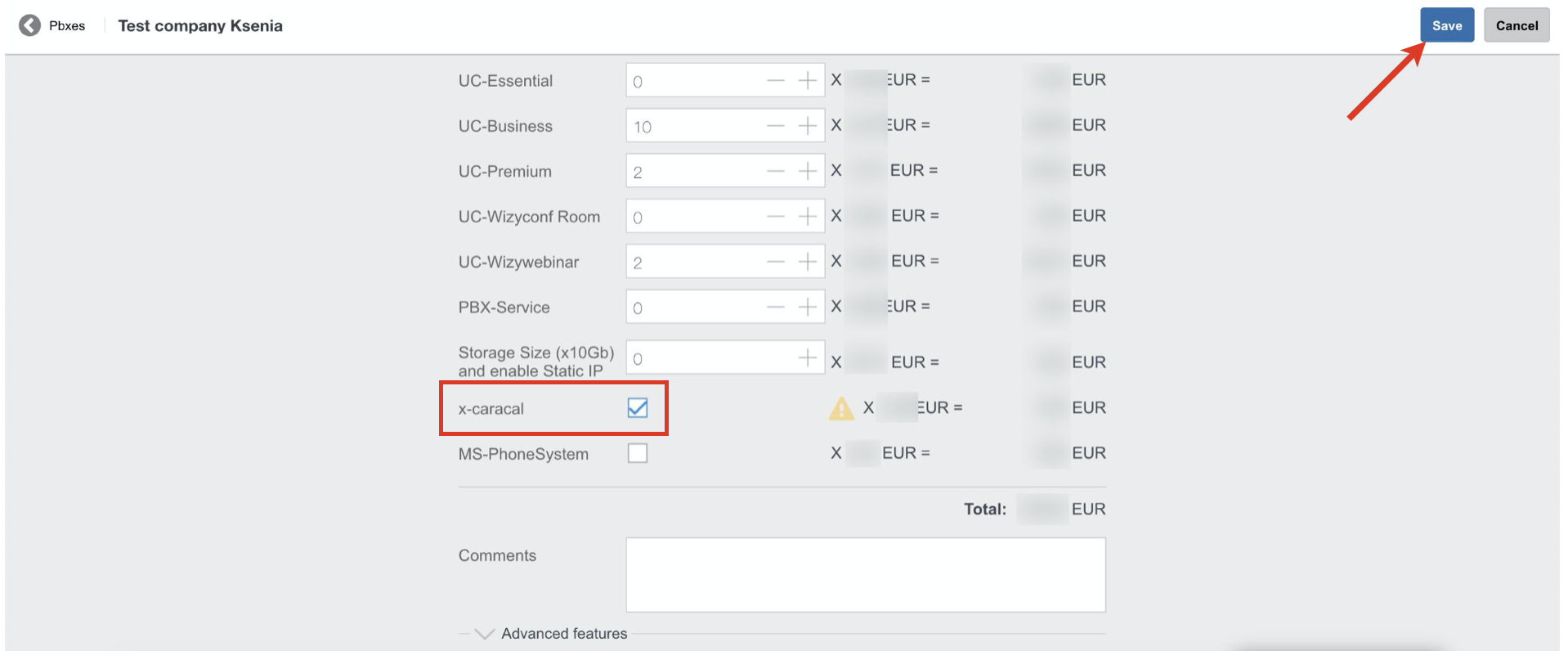
- Go to PBXes tab and choose the PBX -> click Options button (Three dots) and click Edit:

- Enable the checkbox next to x-caracal
- Click Save
Note for VM/HW PBXs: you can purchase and activate x-caracal service only on Virtual PBX, it cannot be activated on Hardware PBX.
Proceed with confirming your order: tick off
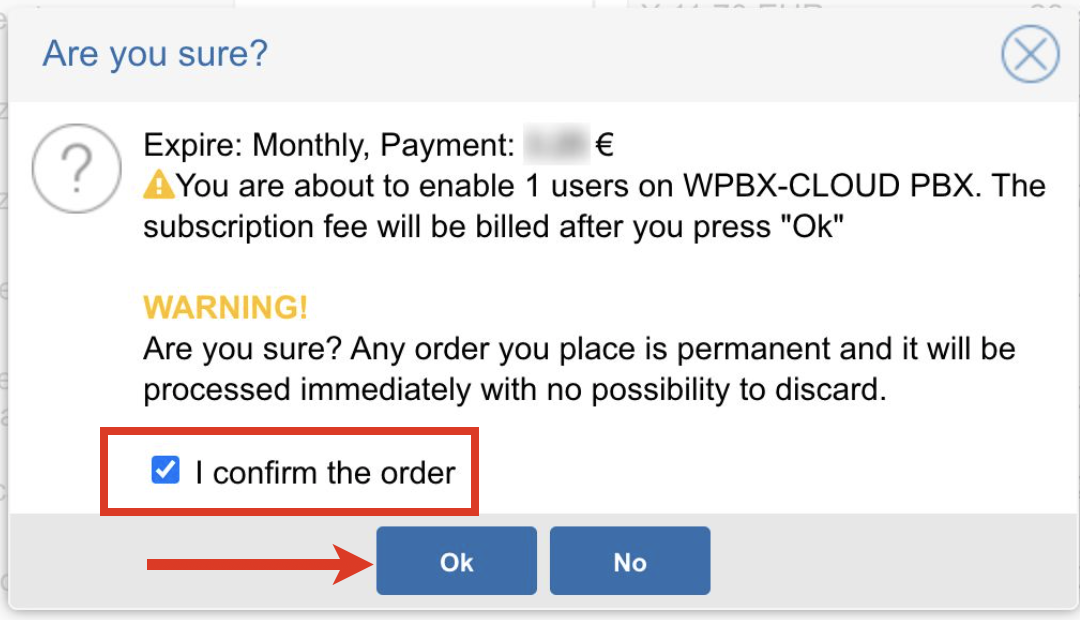
Step 2. Enable x-caracal in WMS
Cloud PBX activation
To activate the service on Cloud PBX, proceed with the step described below.
Note: Your Cloud PBX should be upgraded to WMS v 5.03.20210729.2 or higher.
- Go to WMS Settings -> PBX -> Integrations
- Proceed to Analytics tab
- Tick off Enable checkbox
- Click Save

Virtual PBX activation
To activate the service on Virtual PBX, proceed with the step described below.
Note: Your Virtual PBX should be upgraded to WMS v 5.03.20210826.1.
Virtual PBX limitations
x-caracal settings are not reset when:
- resetting PBX to factory defaults
- restoring from backup
- Go to WMS Settings -> PBX -> Integrations
- Proceed to Analytics tab
Tick off Enable checkbox and connect to MYSQL server by entering Host, Database name and credentials to set up x-caracal database
Notes:
- The following characters are not supported in credentials: $ and #
- The Database name field is available starting from WMS 5.04.20220309.1
- Click Save

After x-caracal is activated, you can access it from Collaboration -> Other (expanded) -> x-caracal:

Deactivation
Starting from WMS 5.04, it is possible to deactivate x-caracal on the WMS side:
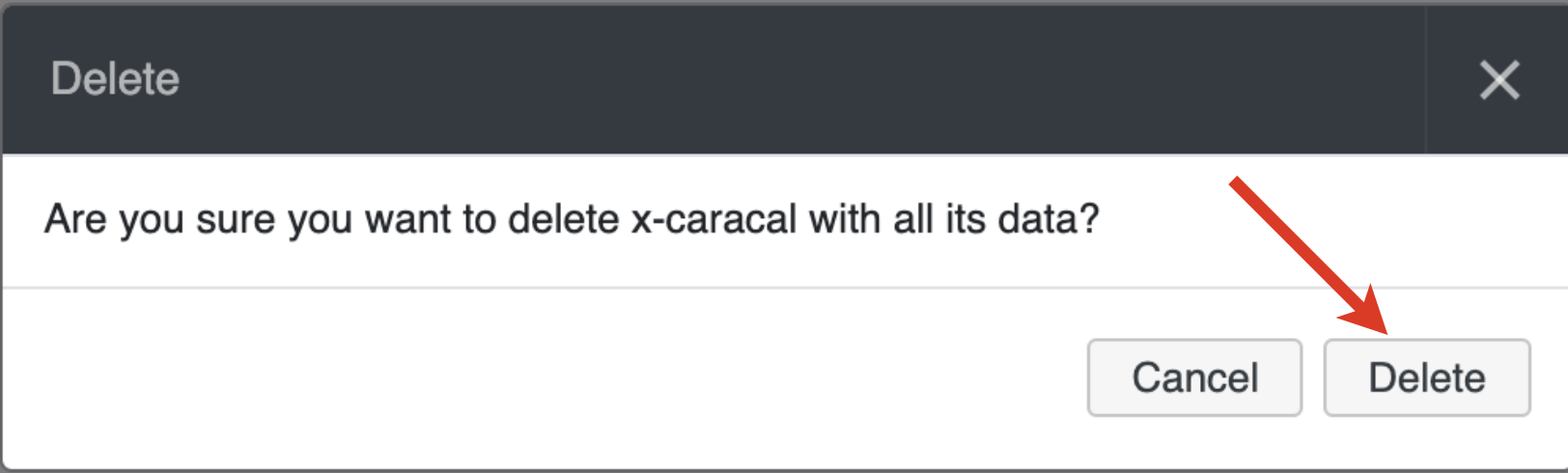
Important: Deactivating x-caracal removes both x-caracal service and all its data.
- Go to WMS -> Settings -> PBX -> Integrations
On the Analytics tab, disable the checkbox in front of the Enabled button under x-caracal and click Save:
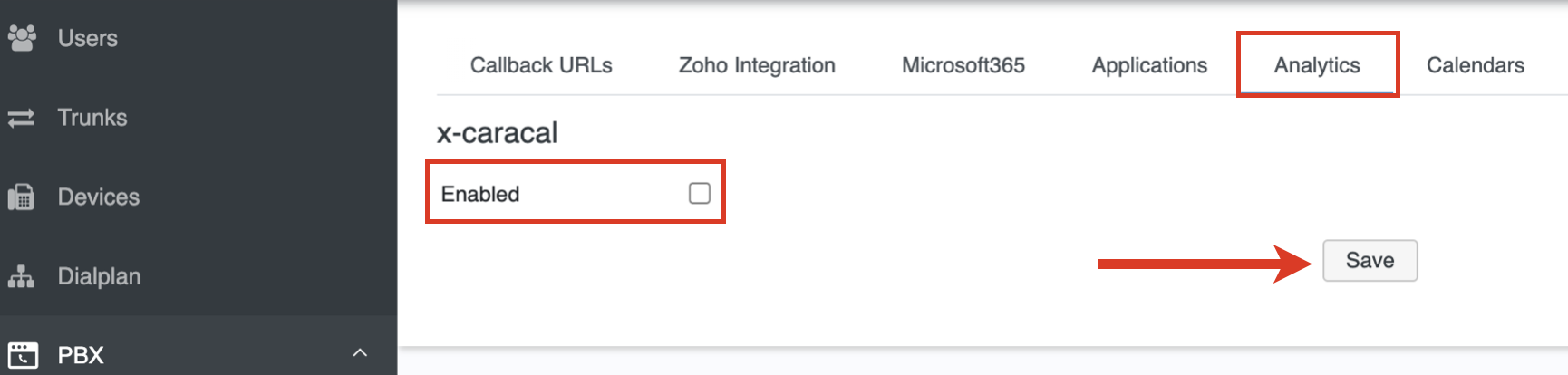
Click Delete on the pop-up window that appears to confirm your decision:
Reports
Reports are divided into 5 groups:
- Realtime - real-time statistics by Queue/ Agent
- Distribution - call distribution reports by day/ week/ hour/ day of week
- Answered - detailed information and reports regarding answered calls
- Unanswered - detailed information and reports regarding unanswered calls
- Agent - detailed information and reports regarding each Agent activity
- Setup - settings for assigning specific Agents/ Queues to other users for monitoring
There are also Search option that helps you to find information about any specific call and Filter to display statistics for a subset of Queues and Agents.
All reports can be downloaded in 4 different formats:
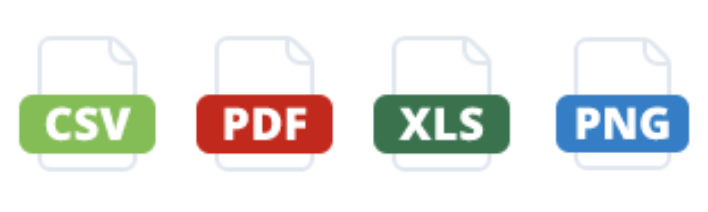
Currently the following statistics are not included into the reports:
- no outgoing calls
- no call recordings
- no tags
Note regarding clearing of old data: by default, the system clears data older than 12 months, if other values are not specified in WMS -> Settings -> PBX -> Call and chat history. Clearing of old data is run at 4 am every day.
Documentation: WMS Settings Menu - Admin Guide: Call and chat history
Setup
Note: This menu is available only for a manager who is a user with "Admin" user type.
Starting from WMS Beta 6.04.20230724.1, Setup -> Schedules/Alerts menu is available for non-admin users too (see section Scheduled reports).
This menu allows a manager to assign specific Agents/ Queues to other users that they can monitor (see below instructions) and schedule reports (see section Scheduled reports).
All users with Premium licenses are displayed on this page and are automatically synced every 15 minutes. If you need to display any changes immediately, click Sync button.
To assign specific Agents/ Queues, proceed with the following steps:
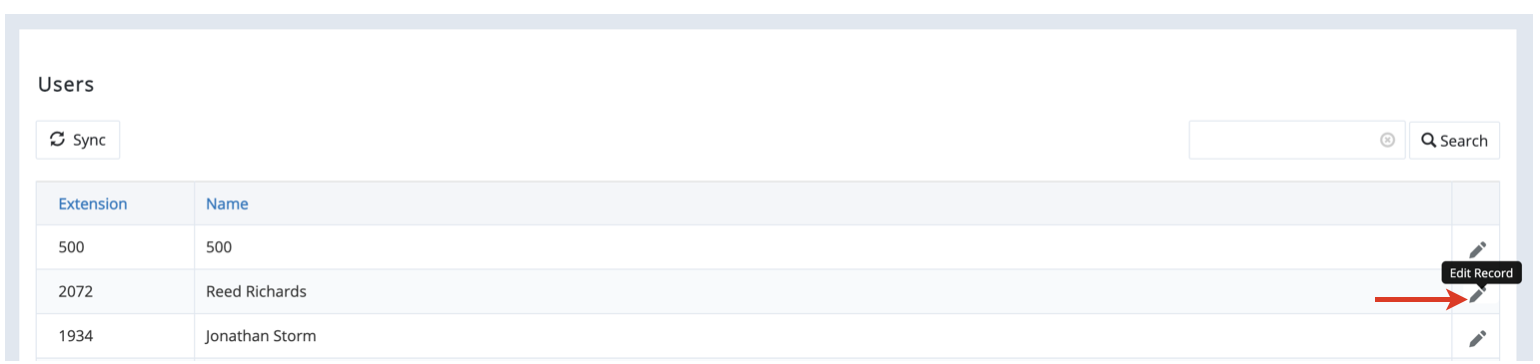
Go to Setup -> Users:

Select a supervisor and click Pencil icon to edit a record:
Select Agents/ Queues that this user can monitor:
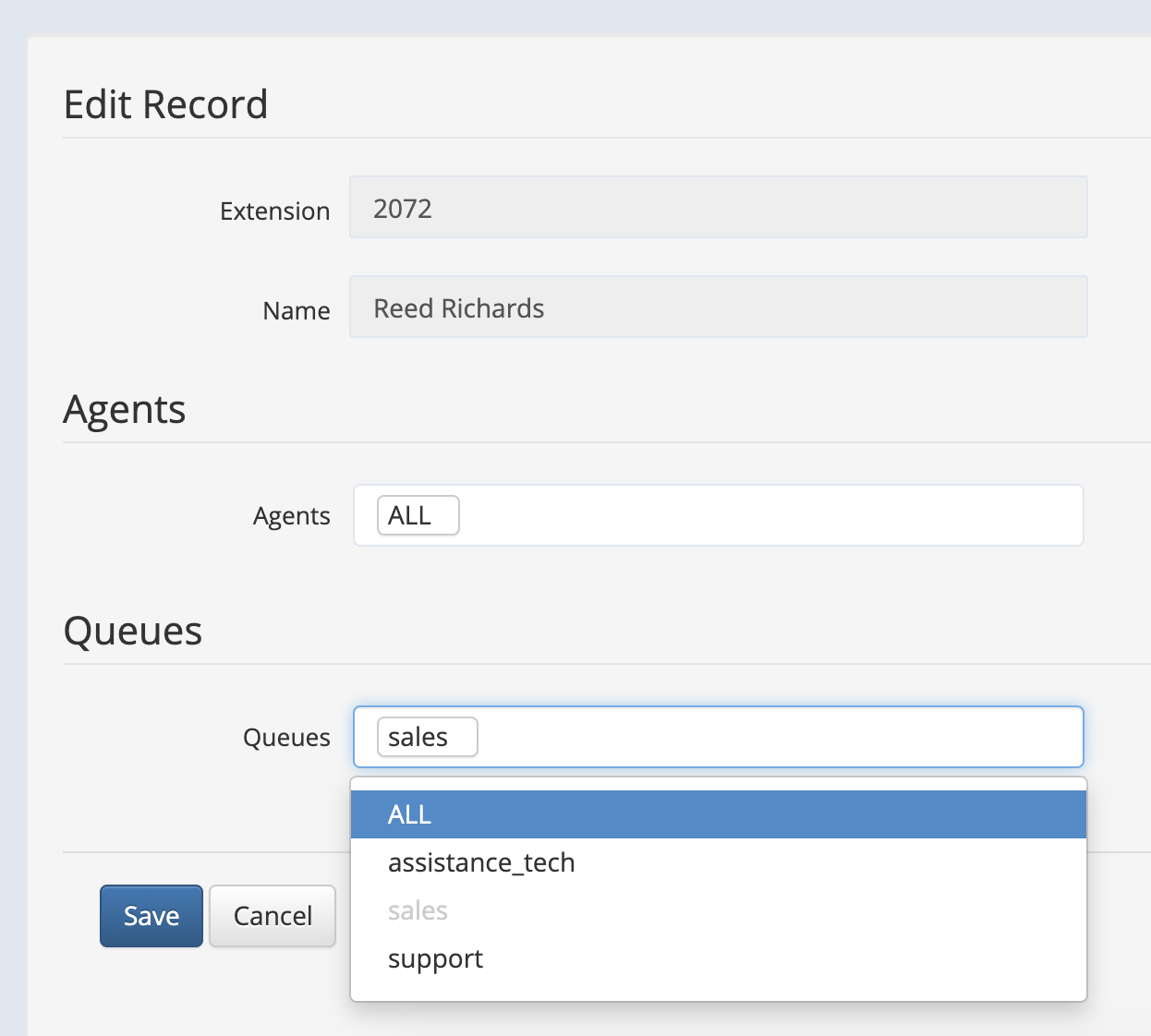
Click Save
Current limitations:
1. Users need to log out/ in to Collaboration after a manager applies changes
2. User names are not automatically updated after they are changed in WMS -> Users. To display updated user names:
- launch the Sync manually or wait 15 minutes for the changes to be synced automatically
- reload Users page in x-caracal
Filter
Before proceeding to reports, choose a subset of Queues and Agents to display statistics for. Date range and time frame also need to be specified.
Once the selection is done, you can get the reports by clicking Display report and navigating to the desired tab. 
Notes:
- The selected date/ time range is very important. All report data that you run are related to this date/ time range. So, it is possible to look at all reports for any given date/ time specified.
Example; daily report, weekly report monthly report, or even reports for a portion of the day such as 9am until noon. This allows you to evaluate distribution and performance over any given date/ time. In addition, some reports can be grouped by periods (e.g. daily, weekly, etc). So, it’s possible to select a date/ time range of the entire year, then group by week. This is a very useful approach to see trends over long periods. - Starting from WMS 5.04, depending on the PBX load, the following limits for maximum allowed days range apply when generating reports:
- Less than 500K records - max 180 days
- 500K - 700K records - max 120 days
- 700K - 900K records - max 60 days
- 900K and more - max 31 days
Note: It is possible to set custom limit using custom config parameter. Documentation: Custom config parameters List - x-caracal
Search
Search helps you quickly locate records you are interested in. You can apply several filters at the same time.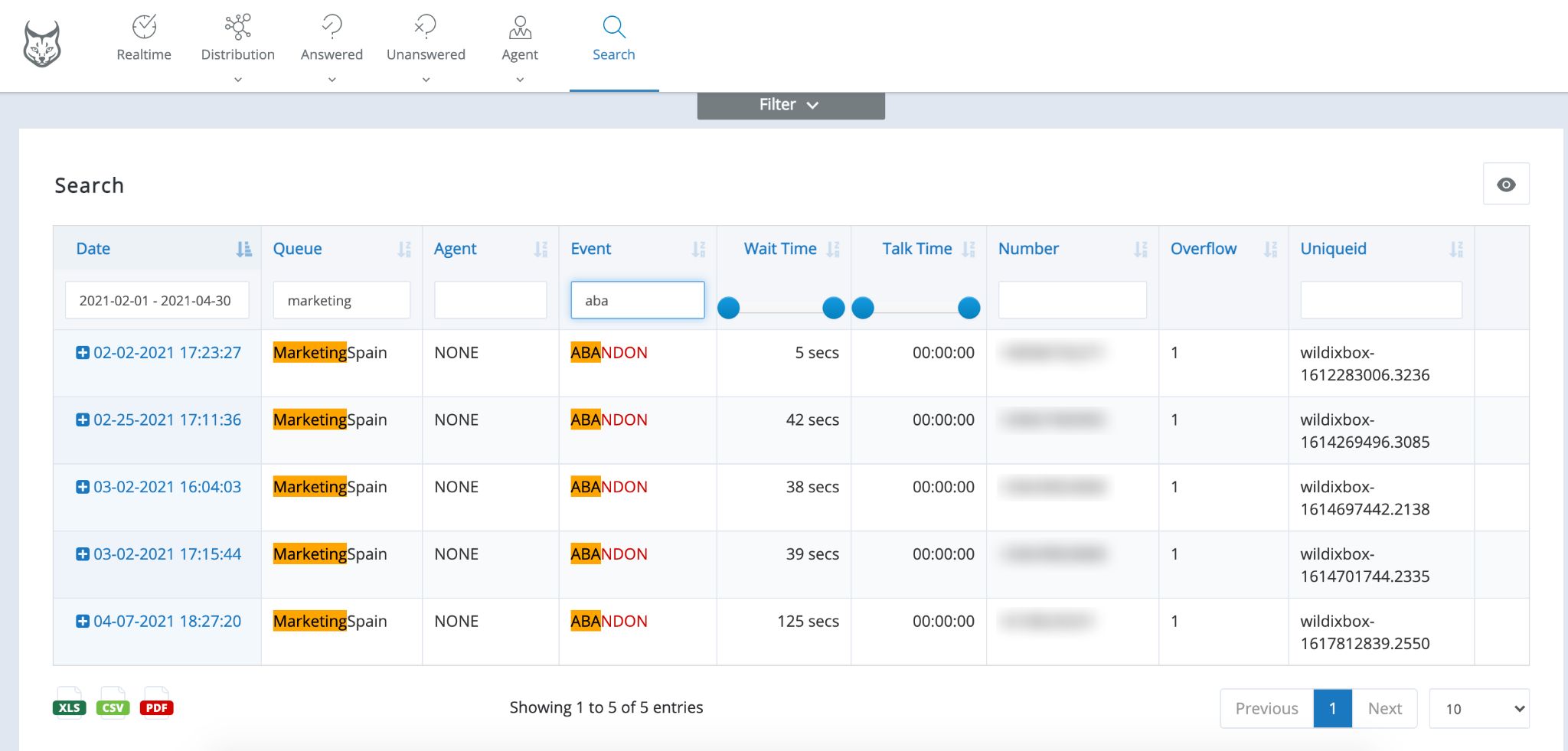
- Date: a date range can be specified to filter out calls
- Queue: specify Queue name/ ID
- Agent: if you are interested in info related to certain Agent, type Agents name/ extension
- Event: when you are particularly interested in certain event, filter by event
- Wait Time: search for calls that were waiting X amount of time
- Talk time: filter calls that lasted X amount of time. This is useful for finding calls that took too long or perhaps that did not last long enough. Both conditions are possible indicators of issues
- Number: If all you have for a certain call you are interested in is the caller id number, that is all you need
Events
When a call enters the system, it generates several events indicating its status. Below you can find the list of common events:
Event | Description |
| ABANDON | A caller hung up before being answered |
COMPLETEAGENT | A caller was connected to an agent, and the call was terminated normally by the agent |
| COMPLETECALLER | A caller was connected to an agent, and the call was terminated normally by the caller |
COMPUTED END PAUSE | Emerges if there is no end pause event, for example, if an agent goes from being in a pause state to being available without a pause event being triggered. In this case, the system will compute this event starting from the last event of the pause period. For example, an agent goes into a break at 5 pm, and there is no pause event recorded when the break ends; the computed end pause will be recorded at the same time as the next event received |
| COMPUTED END SESSION | Emerges if there is no end session, eg, for static members because they don't log off. In such case, the system computes this event starting a session from the last event of the day. For example, an agent takes a break at 5 pm so the computed start session will be recorded at 5 pm |
COMPUTED START PAUSE | Emerges if there is no start pause event, for example, if an agent goes from being available to being in a pause state without a pause event being triggered. In this case, the system will compute this event starting from the first event of the pause period. For example, an agent goes into a break at 12 pm, and there is no pause event recorded at that time; the computed start pause will be recorded at 12 pm. |
| COMPUTED START SESSION | Emerges if there is no start session, eg, for static members because they don't log in. In such case, the system computes this event starting a session from the first event of the day. For example, an agent answers a call at 9 am, so the computed start session will be recorded at 9 am |
| CONNECT | A caller was connected to an agent |
| END CALL COMPLETEAGENT | A call was hung up by an agent |
| END CALL COMPLETECALLER | A call was hung up by a caller |
| END CALL TRANSFER | A call transfer was completed |
| END PAUSE | Shows when an agent switched back to Available from DND/ Away |
| END SESSION | A session ends when a logoff or remove event is found |
ENTERQUEUE | A call has entered the queue |
EXITEMPTY | A caller was forcefully removed from the queue because there were no available agents and the queue was configured to do so |
EXITWITHTIMEOUT | A caller was removed from the queue because max. waiting time in the queue was reached |
| FAILED | A call was offered but an agent didn't answer it as a result of RINGNOANSWER event. The event can repeat based on the timeout set for a call group. For example, there might be 4 FAILED events because the call was offered 4 times (4 "10 seconds ringing cycles" because the call group time out is 10 and the call can remain 40 seconds on the queue) |
| REJECT | A call failed to connect to an agent |
RINGNOANSWER | A call was offered to the agent but it was not answered |
| START CALL | Emerges when a call is answered by an agent |
| START PAUSE | Shows when an agent is paused (means the agent is in DND or Away) |
| START SESSION | A session begins when a login or add event is found |
TRANSFER | A call was answered by an agent and subsequently was transferred to a different extension |
INFO Fields
When you access the complete call flow details (under Detailed reports), you have up to 5 Info Fields, the meaning of each field depends on the event, here is a complete list of possible events and its info fields. Fields Info 4 and Info 5 are not applied.
Field | ENTERQUEUE | RINGNOANSWER | CONNECT | COMPLETECALLER/ COMPLETEAGENT | ABANDON/ EXITWITHTIMEOUT |
Info 1 | - | Ringing time | Hold time | Waiting time | Caller position at hung up/exit the queue |
Info 2 | Caller ID | - | Call unique id | Call length | Caller original position |
Info 3 | Position when entering queue | - | Ringing time | Caller original position in the queue | Waiting time |
Info 4 | N/A | N/A | N/A | N/A | N/A |
Info 5 | N/A | N/A | N/A | N/A | N/A |
Realtime
Realtime report shows your Queues and Agents real time state.
Queue Summary
The report shows the state of the selected Queues in real time.
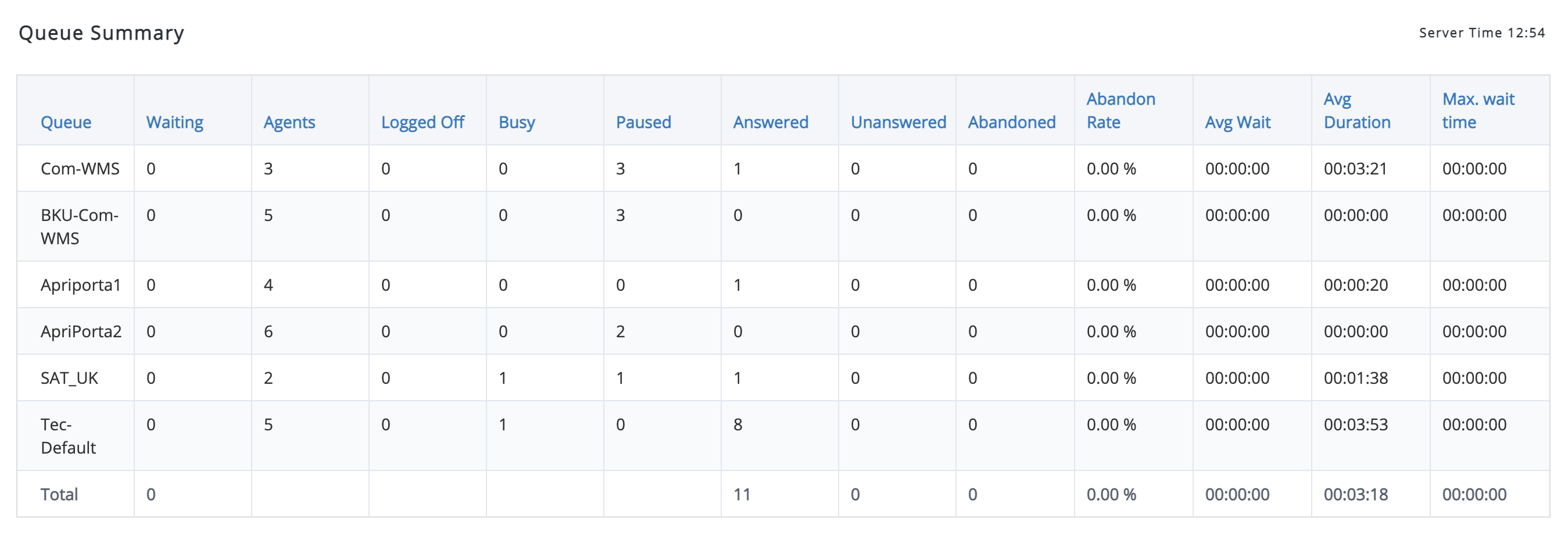
- Queue: ID/ name of selected Queues
- Waiting: number of calls waiting in a queue
- Agents: number of available Agents
- Logged Off: number of Agents logged off from Queue
- Busy: number of busy (in a call) Agents
- Paused: number of paused Agents
- Answered: number of answered calls
Unanswered: number of unanswered calls
- Abandoned: number of calls abandoned by Caller in the selected Queues
- Abandon Rate: ratio of abandoned calls over a period of time set in Filter
- Avg Wait: Average Wait Time for all calls in the Queue, expressed in time
- Avg Duration: Average Talk Time for all calls in the Queue, expressed in time
- Max. wait time: Maximum Waiting Time for all calls in the Queue, expressed in time
Agent Status
The report provides information about Agents user statuses and status messages (status messages display is supported starting from WMS 6.01.20221122.1).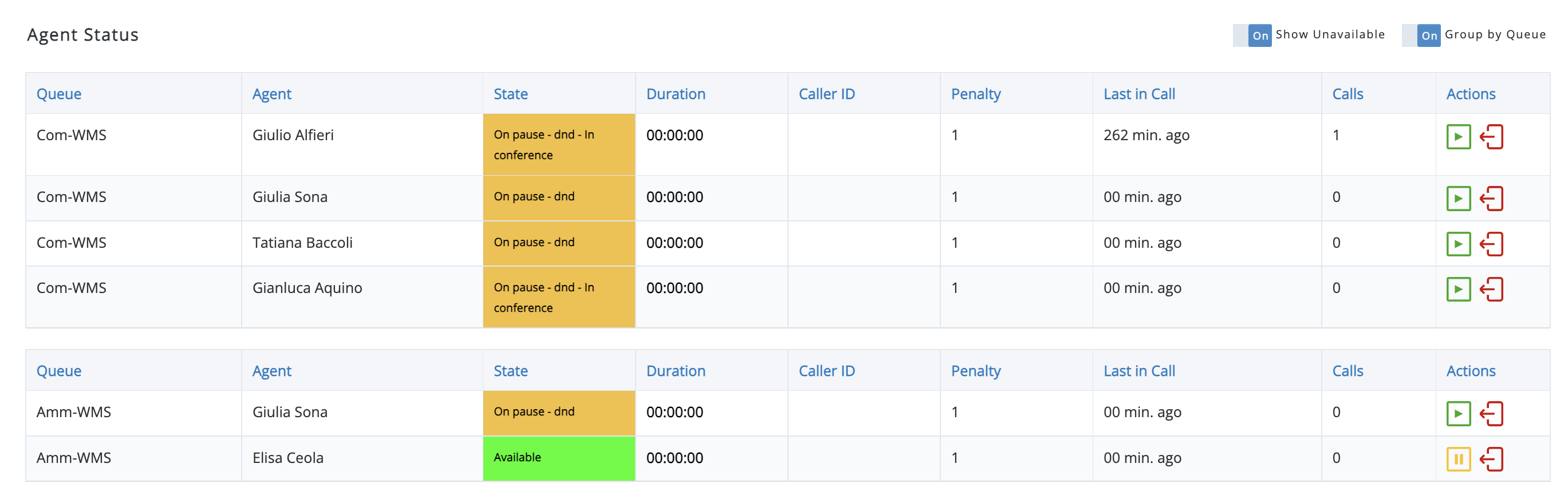
- Queue: ID/ name of selected Queues
- Agent: Agent name/ extension
- State: Agent user status and status message (status messages display is supported starting from WMS 6.01.20221122.1)
- Available - Agent is available
- Ringing - there is an incoming call to Queue that Agent belongs to
- Busy - Agent is in a call that belongs to Queue
- Personal call - Agent has a personal call, not related to Queue
- On pause - Agent is paused
- On Hold - a call is on hold
- Duration: the call's duration
- Caller ID: number of Caller
- Queue: the called number of the Queue
- Penalty: the priority when choosing Agent for a call. The value is constant which means all Agents have the same priority
- Last in Call: the total time since Agent was in call
- Calls: the total number of calls answered by Agent
- Actions: pause/ unpause a specific Agent, log the Agent off the Queue (for dynamically added Agents)
Calls Waiting Detail
This report appears once new calls arrive to a queue.
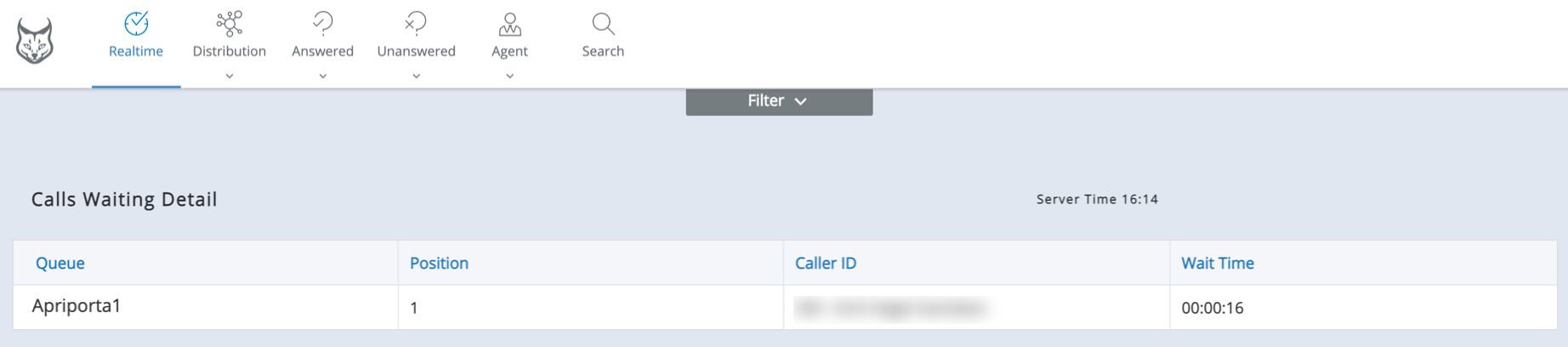
- Queue: ID/ name of selected Queues
- Position: the call's position in the queue
- Caller ID: number of Caller
- Wait Time: time the call is waiting in the queue
Distribution Reports
Distribution reports include statistics of all received calls (answered, unanswered, abandoned and transferred) grouped by time periods: month, week, day, hour and day of week.
Distribution Summary
Distribution Summary presents the parameters set in Filter.
Total Calls report shows the overall number of calls per selected Queues. 
- Number of Received Calls: calls received in the selected Queues for the selected time period
- Number of Answered Calls: calls connected to Agents
- Number of Unanswered Calls: calls not connected to Agents and exited the Queues because of timeout
- Number of Abandoned Calls: calls not connected to Agents and exited the Queues because of hangup by Caller
- Number of Transferred Calls: calls connected to Agents and then transferred
- Unanswered Rate: ratio of unanswered calls
- Abandon Rate: ratio of abandoned calls
Distribution by Queue
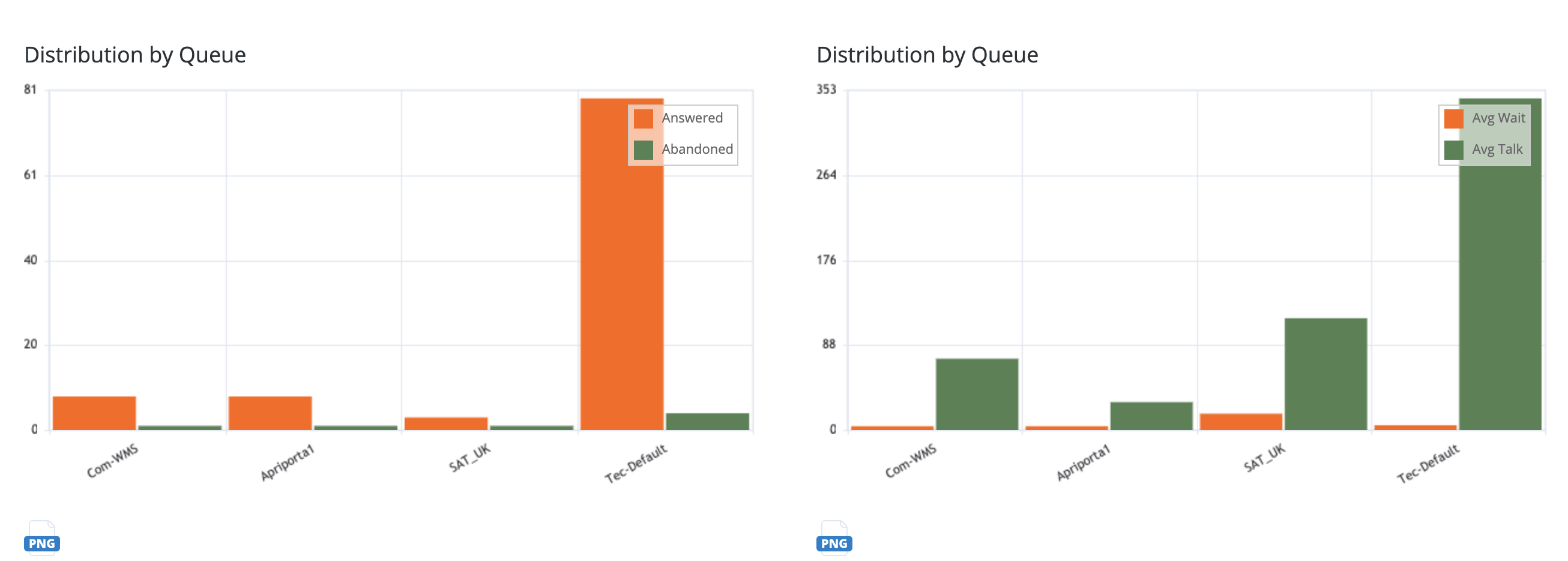
This report shows the distribution of all calls grouped by Queue.
The report can be helpful in understanding which Queue is the busiest/ has more abandoned calls/ takes longer to answer calls etc.
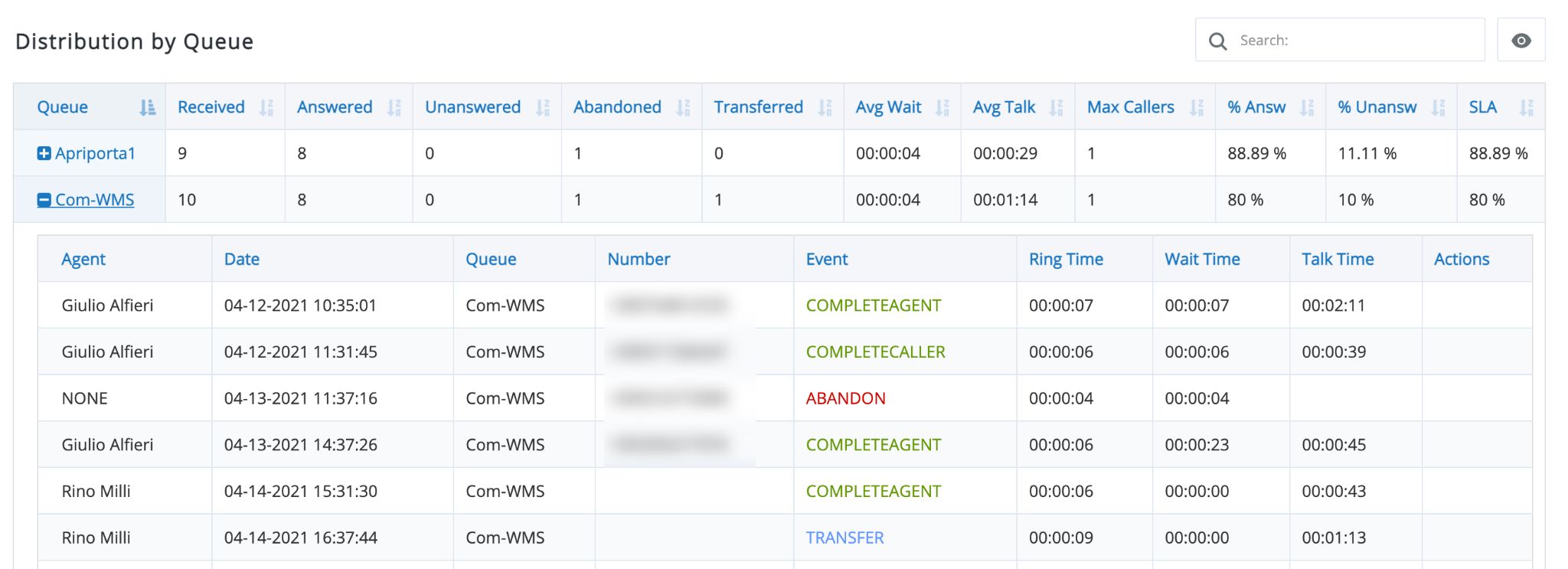
- Queue: ID/ name of the selected Queues
- Received: the total of all received calls (answered, unanswered, abandoned and transferred)
Answered: the total of answered calls
Unanswered: the total of unanswered calls
- Abandoned: the total of calls abandoned by Caller in the selected Queues
- Transferred: the total of calls transferred to the selected Queues
- Avg Wait: Average Wait Time for all calls in the Queue, expressed in time
- Avg Talk: Average Talk Time for all answered calls in the Queue, expressed in time
- Max Callers: maximum number of simultaneous Callers waiting in the Queue, expressed in units
- % Answ: ratio of answered calls
- % Unansw: ratio of unanswered calls
SLA: Service Level Agreement, expressed in percents. The calculation formula is:
- round((ANSWERED_SLA / RECEIVED)*100,2)-> the formula counts all calls answered before the configured SLA (60 seconds by default) against all received calls on that Queue
Click on the first entry column to view the detailed information for calls (Agent, Date, Caller number, Ring/ Wait/ Talk Time):

- Agent: Agent name/ extension
- Date: date and time for the call
- Queue: Queue ID/ name
- Number: Caller ID received for the call
- Event: last event for the call, see Events
- Ring Time: time the call is ringing on Agent
- Wait Time: time the call is waiting on the queue before being answered
- Talk Time: time the call is connected to Agent
- Actions: N/A, used for call recordings (not yet implemented)
The report is available as a graphic representation:
Distribution per Month
This report shows the distribution of answered, unanswered, abandoned and transferred calls grouped by month. If the date range set in Filter is smaller than a month, the report provides data only for a partial month.
Note: Measurements presented here are the same as in the Distribution by Queue report.
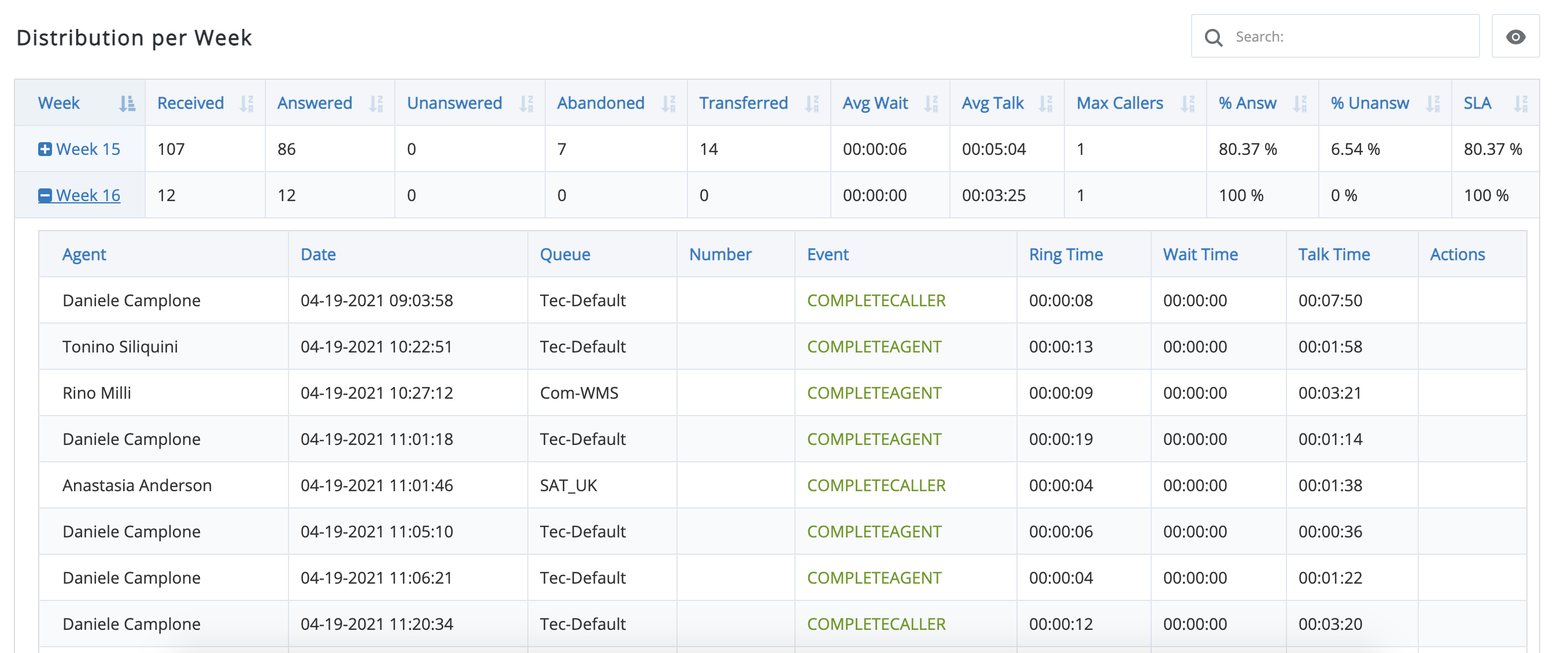
Distribution per Week
This report shows answered, unanswered, abandoned and transferred calls distribution grouped by week. When the date range is greater than a week, you can compare weeks performance with this report. If the date/ time range is smaller than a full week, the metrics on this report provides only partial data.
Note: Measurements presented here are the same as in the Distribution by Queue report.
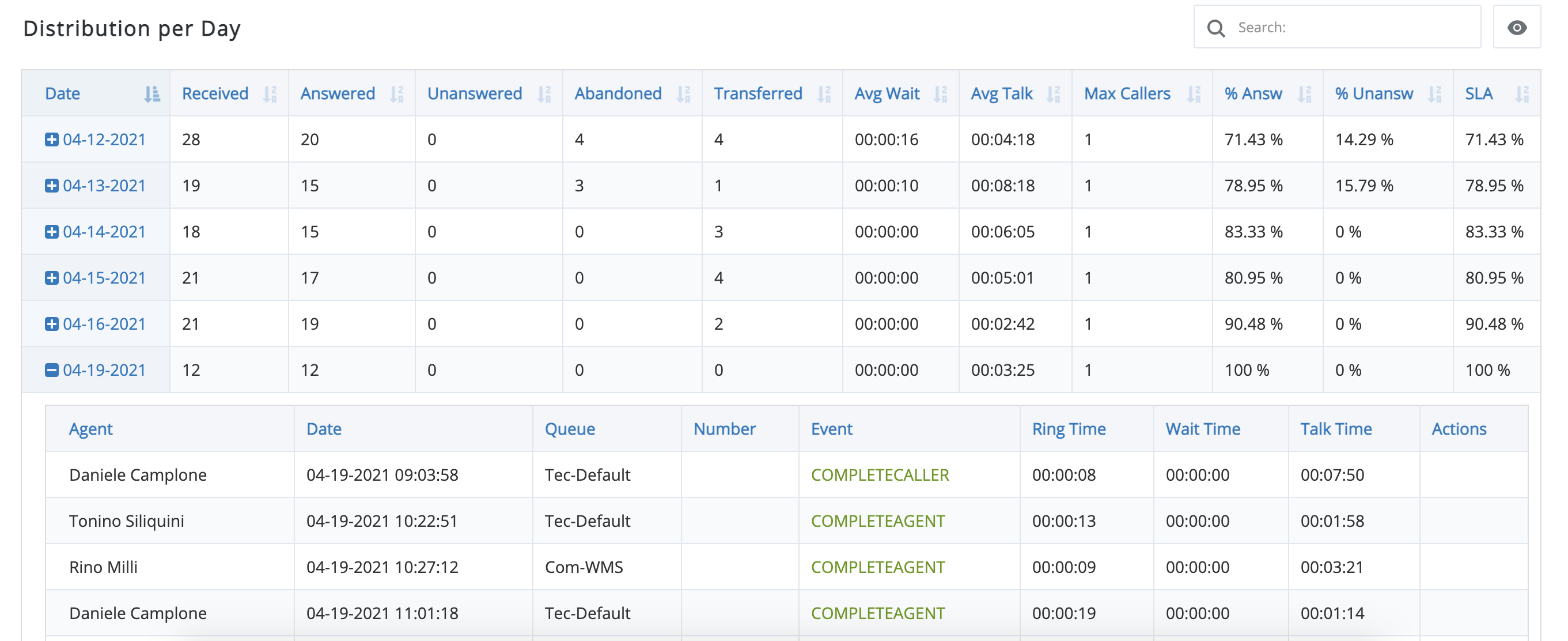
Distribution per Day
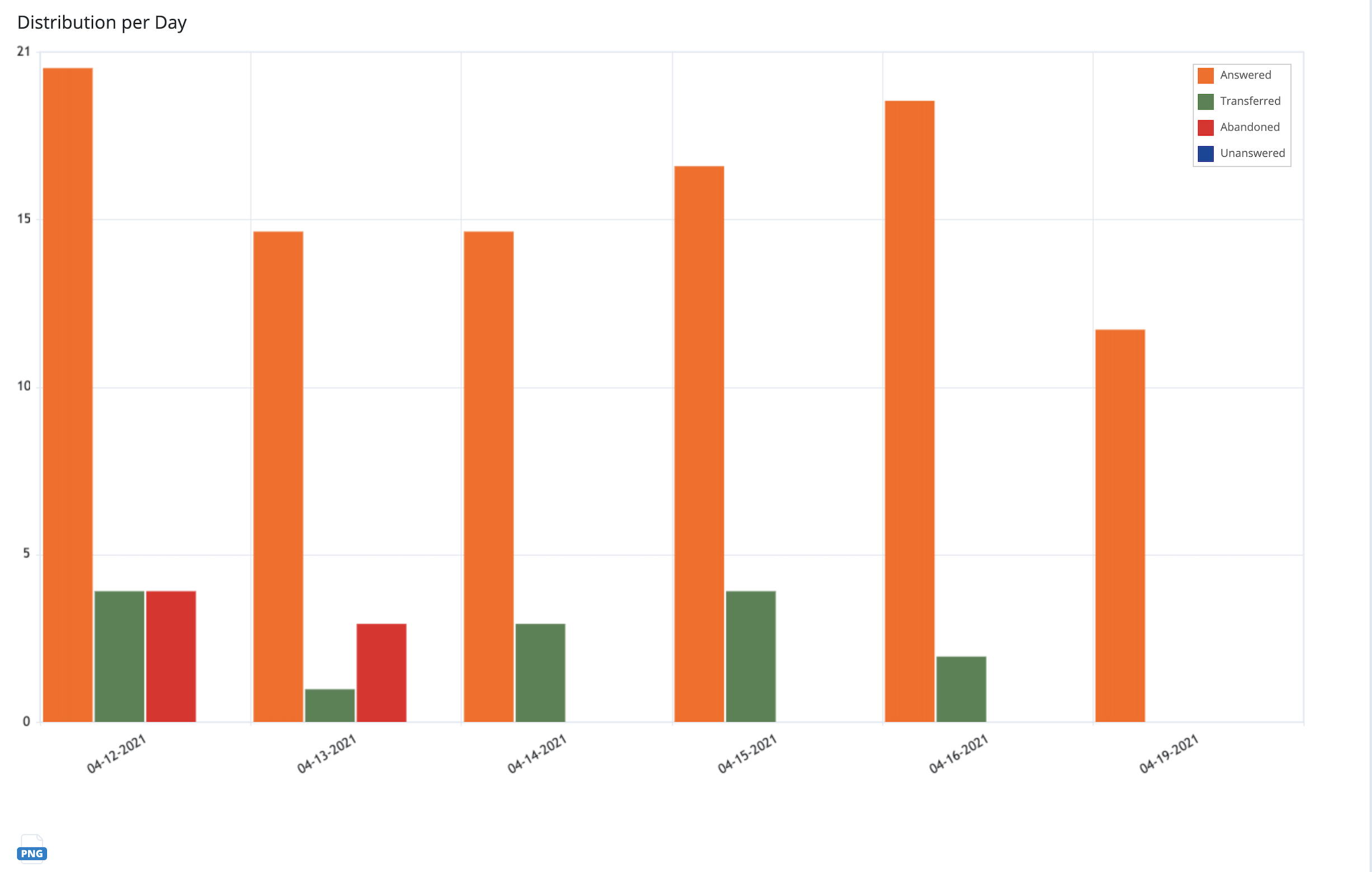
This report shows answered, unanswered, abandoned and transferred calls distribution grouped by day, which is handy when you want to compare performance day by day.
Note: Measurements presented here are the same as in the Distribution by Queue report.
The report is available as a graphic representation:
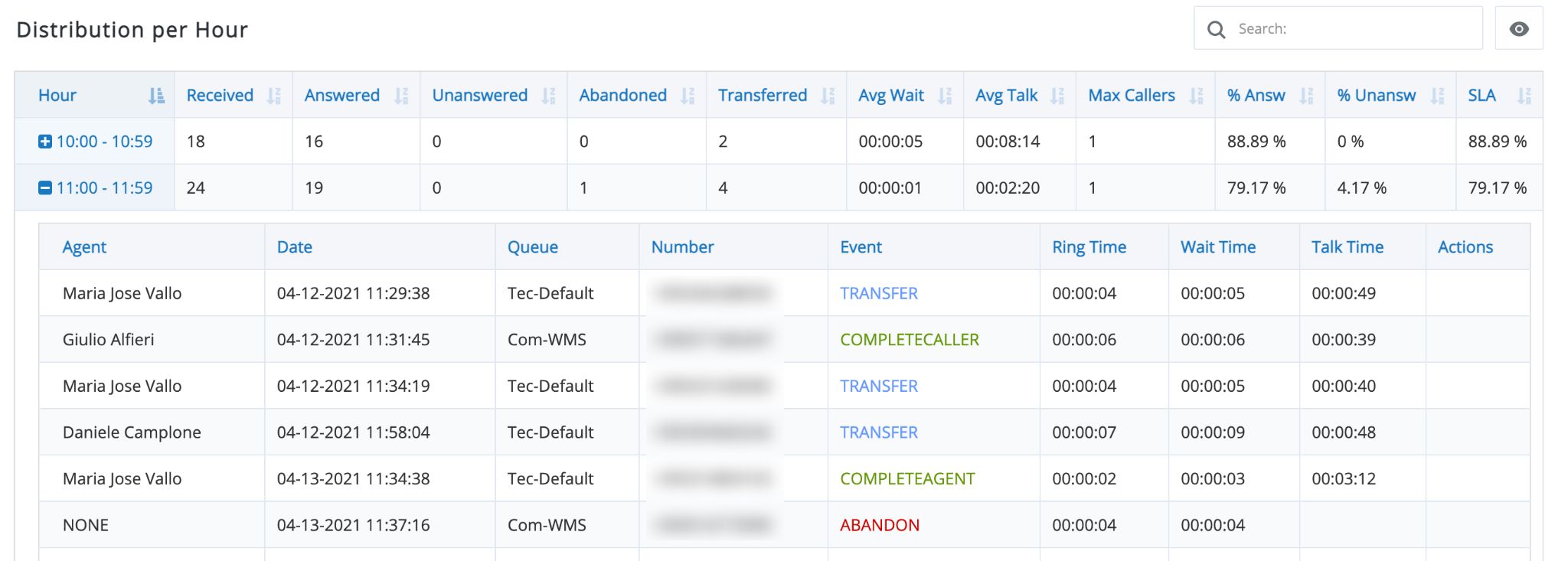
Distribution per Hour
This report shows answered, unanswered, abandoned and transferred calls distribution grouped by hour. With this report you can quickly realize your busiest hours during the date range set in Filter.
Note: Measurements presented here are the same as in the Distribution by Queue report.
The report is available as a graphic representation:

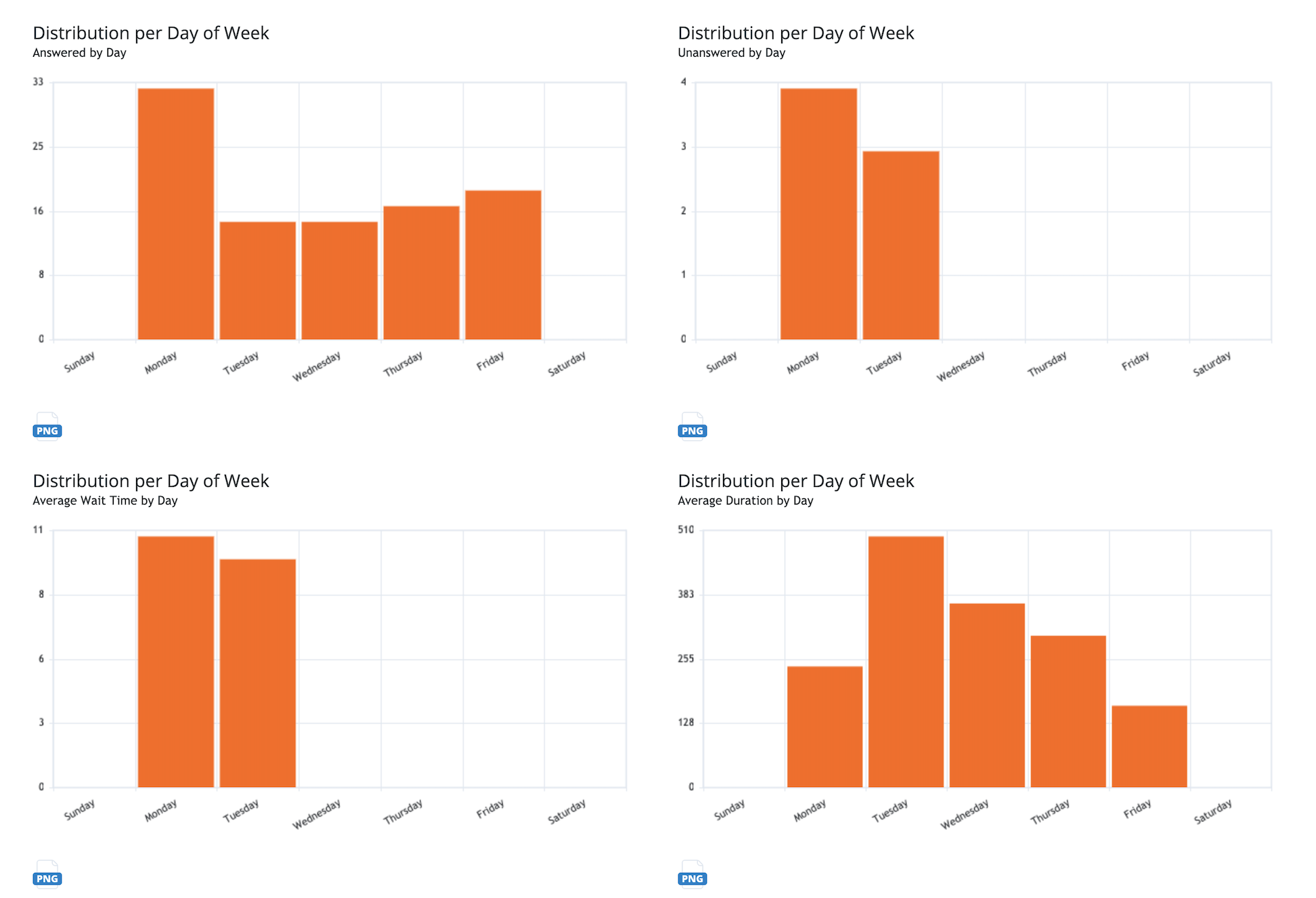
Distribution per Day of Week
This report shows answered, unanswered, abandoned and transferred calls distribution grouped by day, which is handy when you want to compare performance day by day.
Note: Measurements presented here are the same as in the Distribution by Queue report.
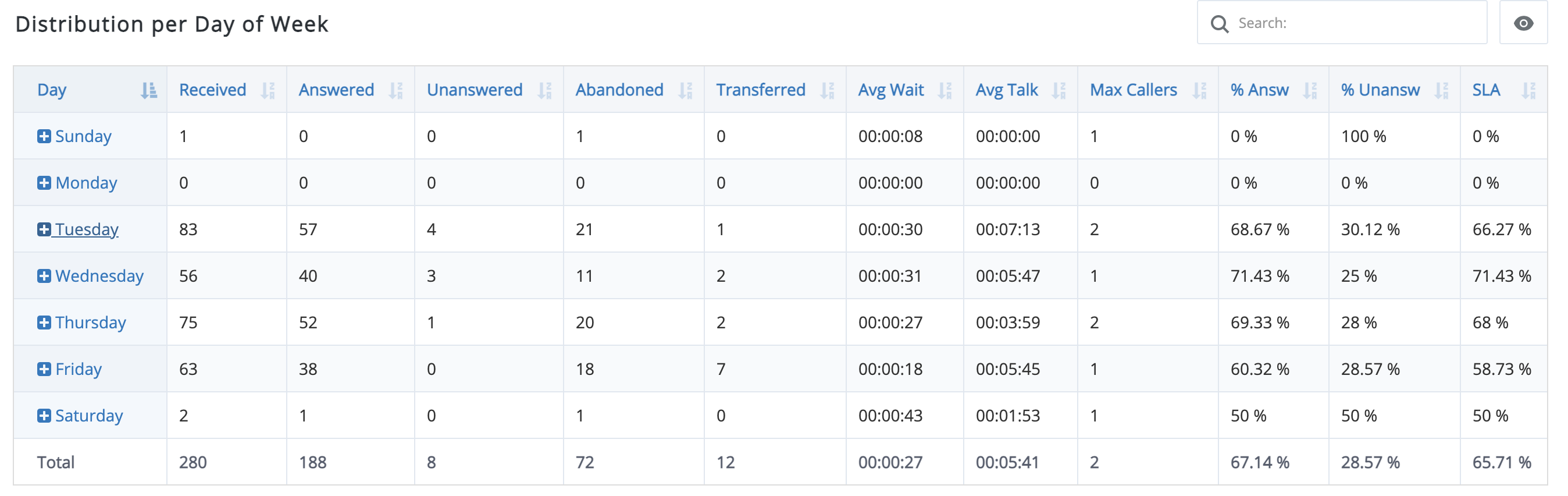
The report is available as a graphic representation:
Detailed Distribution Report
This is a detailed report for all individual calls for the selected queues/ agents and time range. 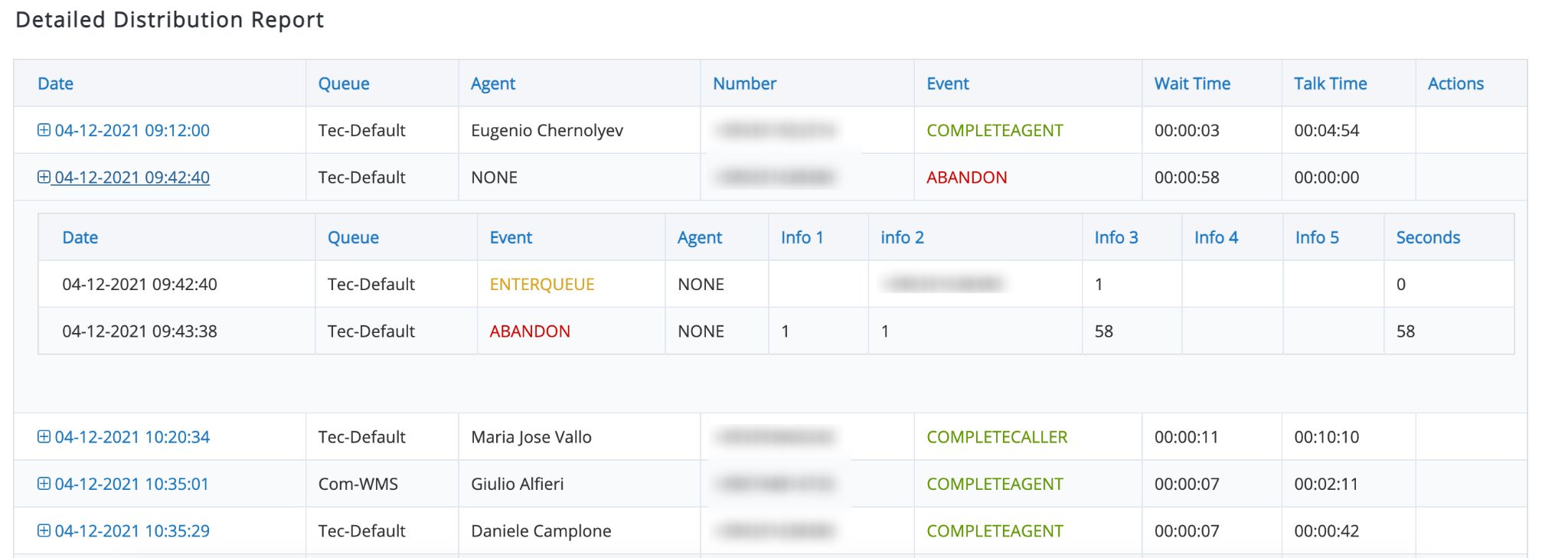
- Date: date and time when a call is connected to Agent or the call entered Queue (in case it was not answered)
- Queue: Queue name/ ID the call arrived to
- Agent: Agent that answers the call. Blank if not answered
- Number: caller ID received for the call
- Event: Last event for the call, see Events
- Wait time: time the call is waiting in Queue
- Talk time: time the call is connected to Agent
- Actions: N/A, used for call recordings (not yet implemented)
Click on the first entry column to view the individual call details and its flow from the moment the call arrived into the queue until hung up: 
- Date: date and time for every event in the details
- Queue: Queue the call arrives to
- Event: every state or every event that takes place on the call, see Events
- Agent: Agent that answers the call (if applicable)
- Info X: there are 5 info fields, each field info depends on the event, refer to INFO Fields
- Seconds: seconds entering the queue
Answered Reports
Answered reports show only calls that have been answered: that means calls that entered Queue and were connected to Agent.
Answered Calls Summary
Answered Calls Summary presents the parameters set in Filter.
Total Answered Calls report shows the total number of answered calls, the average time Agents spent on those calls, the average waiting time for all calls etc.

- Answered Calls: calls connected to Agent
- Transferred Calls: calls connected to Agent and then transferred
- Avg Talk: average talking time for all the answered calls
- Total Duration: the sum of talking time for all answered calls
- Avg Wait: average waiting time for all answered calls (in queue wait). This time starts from the moment the call enters the queue until it is connected to Agent (it includes ring time)
Service Level
This report shows calls answered within different ringing times (15 seconds steps). Each new row includes the number of calls from the previous one (a call answered at 5 seconds is answered within 15 seconds but also within 30 and so on), the difference from one row to the next is shown in the Delta column, while Count shows the sum of calls up to that point. The report is available as a graphic representation.
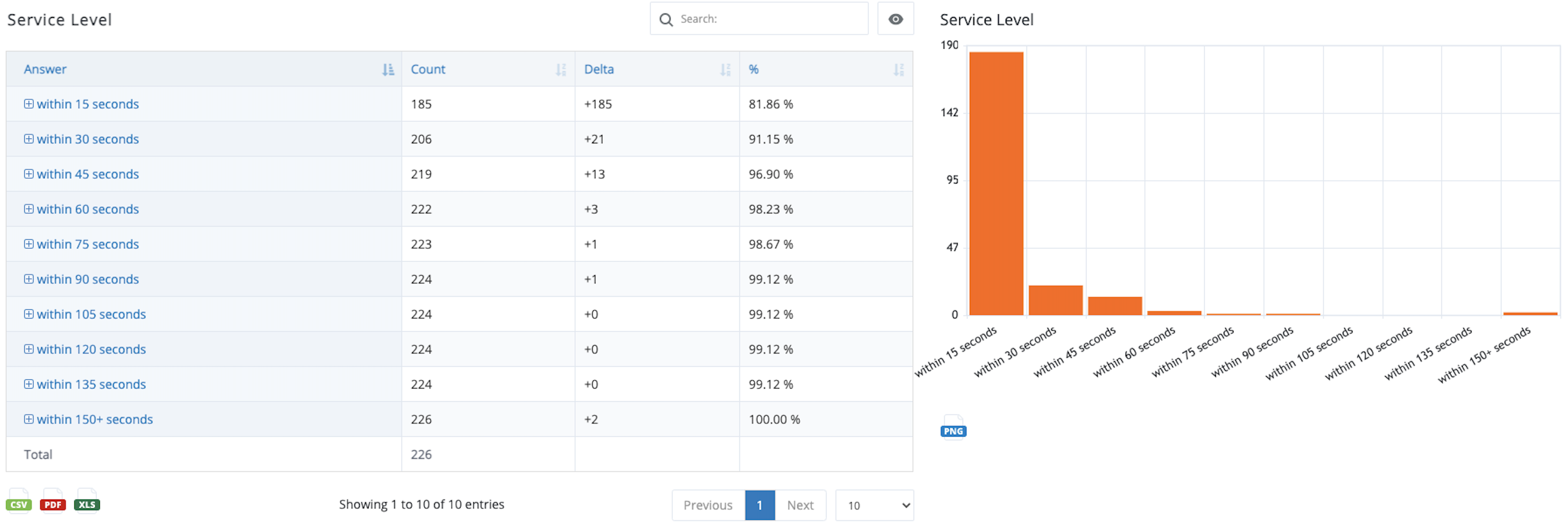
- Answer: ringing (waiting) time range. Click + to view the details of calls
- Count: the sum of all calls up to this point
- Delta: the difference from one row to the next
- %: percentage of the calls on this range against the total
Click on the first entry column to see all calls grouped in this row:
- Date: date and time for the call
- Queue: Queue ID/ name
- Number: Caller ID received for the call
- Event: last event for the call, see Events
- Ring Time: time the call is ringing on Agent
- Wait Time: time the call is waiting on the queue before being answered
- Talk Time: time the call is connected to Agent
- Actions: N/A, used for call recordings (not yet implemented)
Answered by Queue
This report shows calls received in each Queue. The report is available as a graphic representation.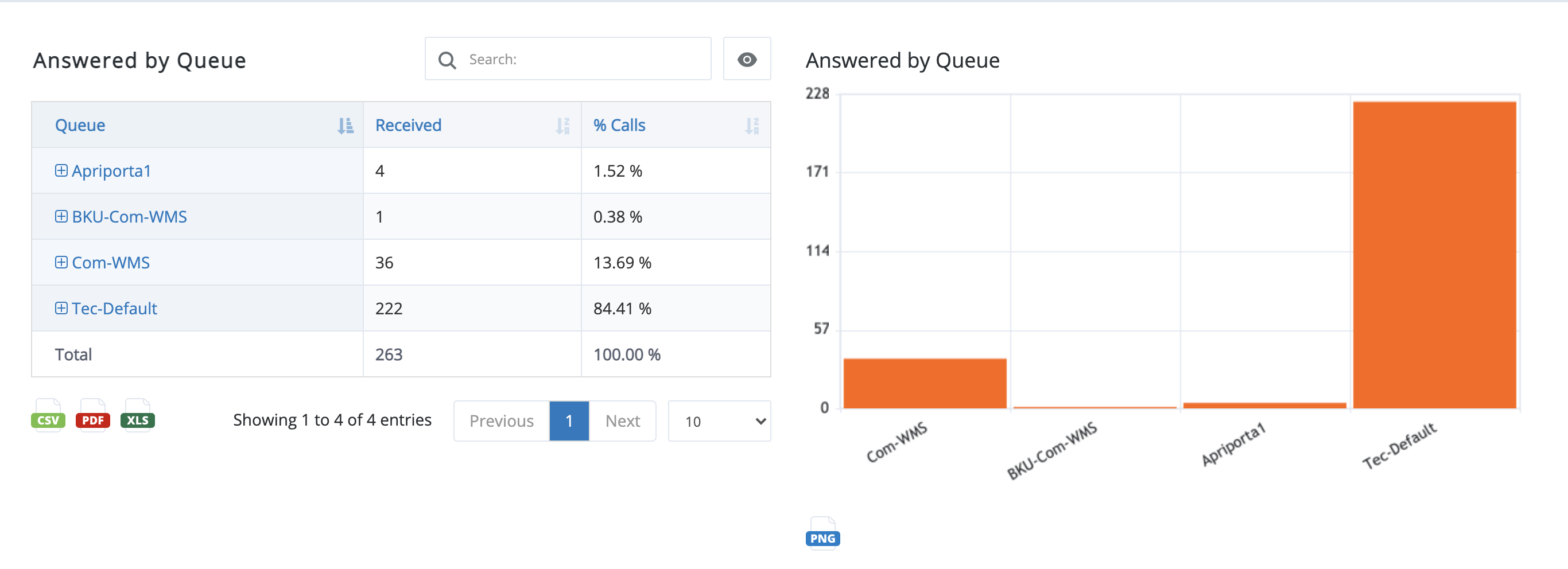
- Queue: Queue ID/ name
- Received: calls answered for that Queue
- %: percentage of calls answered in Queue versus calls answered in all Queues. Remember that this is related to Queues selected in Filter so it does not compare to all Queues across the system
Click on the first column entry to see all calls grouped in this row:

- Date: date and time for the call
- Agent: Agent who answers the call
- Number: Caller ID received for the call
- Event: last event for the call, see Events
- Ring Time: time the call is ringing on Agent
- Wait Time: time the call is waiting on the queue before being answered
- Talk Time: time the call is connected to Agent
- Actions: N/A, used for call recordings (not yet implemented)
Answered by Agent
This report all completed and transferred answered calls, the total time Agents spent on the phone, average talk time etc.
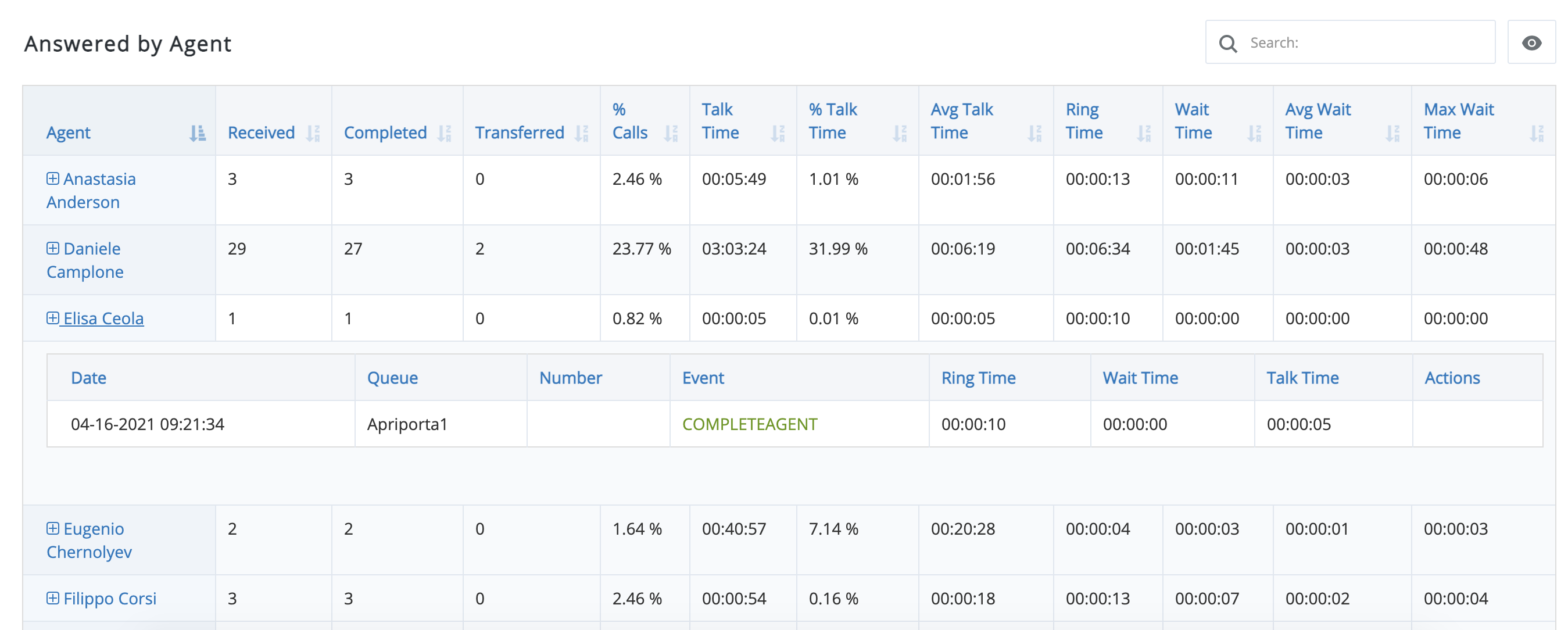
- Agent: Agent name/ extension
- Received: the total number of calls offered to Agent
- Completed: the amount of calls answered by Agent and not transferred
- Transferred: calls answered and transferred by Agent
- % Calls: percentage of answered calls for that Agent against the total (answered calls for all Agents)
- Talk Time: the total time Agent talking on the phone
- % Talk Time: percentage of talk time for that Agent against the total talk time (talk time of all Agents)
- Avg Talk Time: average talk time for Agent
- Ring Time: the sum of ring time of all calls answered by this Agent
- Wait Time: the sum of wait time for all calls answered by this Agent
- Avg Wait Time: average wait time for calls answered by Agent
- Max Wait Time: maximum wait time out of all calls answered by this Agent
Click on the first column entry to see all calls grouped in this row:

- Date: date and time for the call
- Queue: Queue ID/ name
- Number: Caller ID received for the call
- Event: last event for the call, see Events
- Ring Time: time the call is ringing on Agent
- Wait Time: time the call is waiting on the queue before being answered
- Talk Time: time the call is connected to Agent
- Actions: N/A, used for call recordings (not yet implemented)
The report is available as a graphic representation: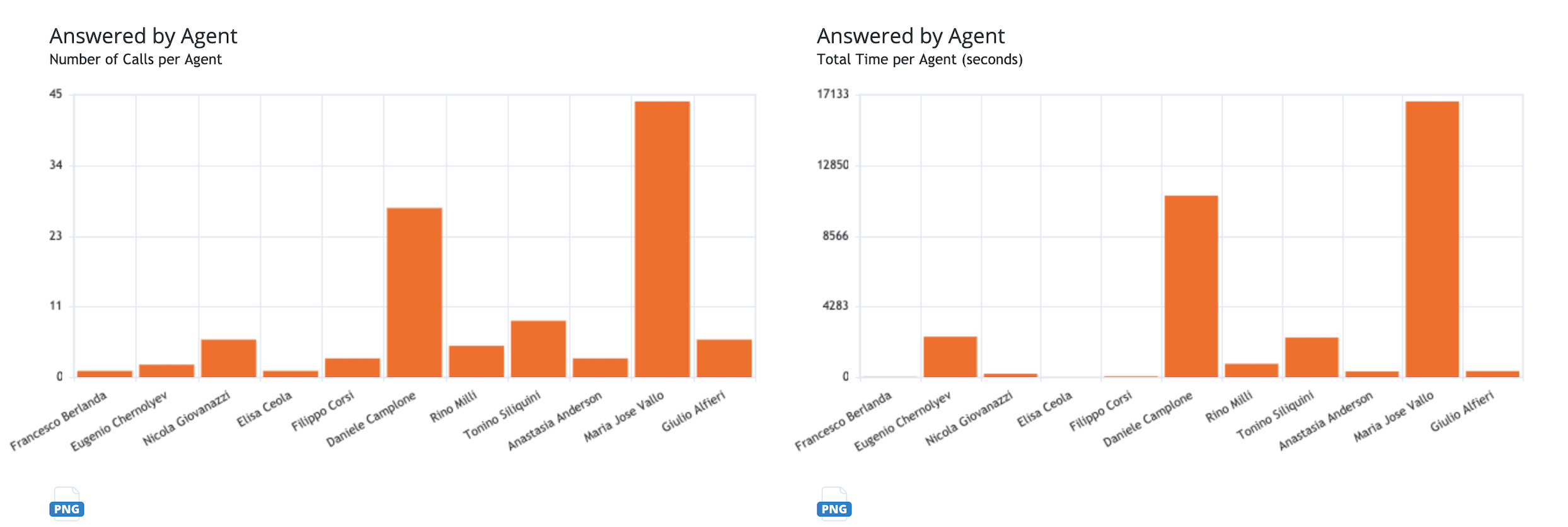
Disconnection Cause
This report shows reasons calls are ended. This is very useful in environments where the Agent is forbidden to hang up calls. It is available as a graphic representation.
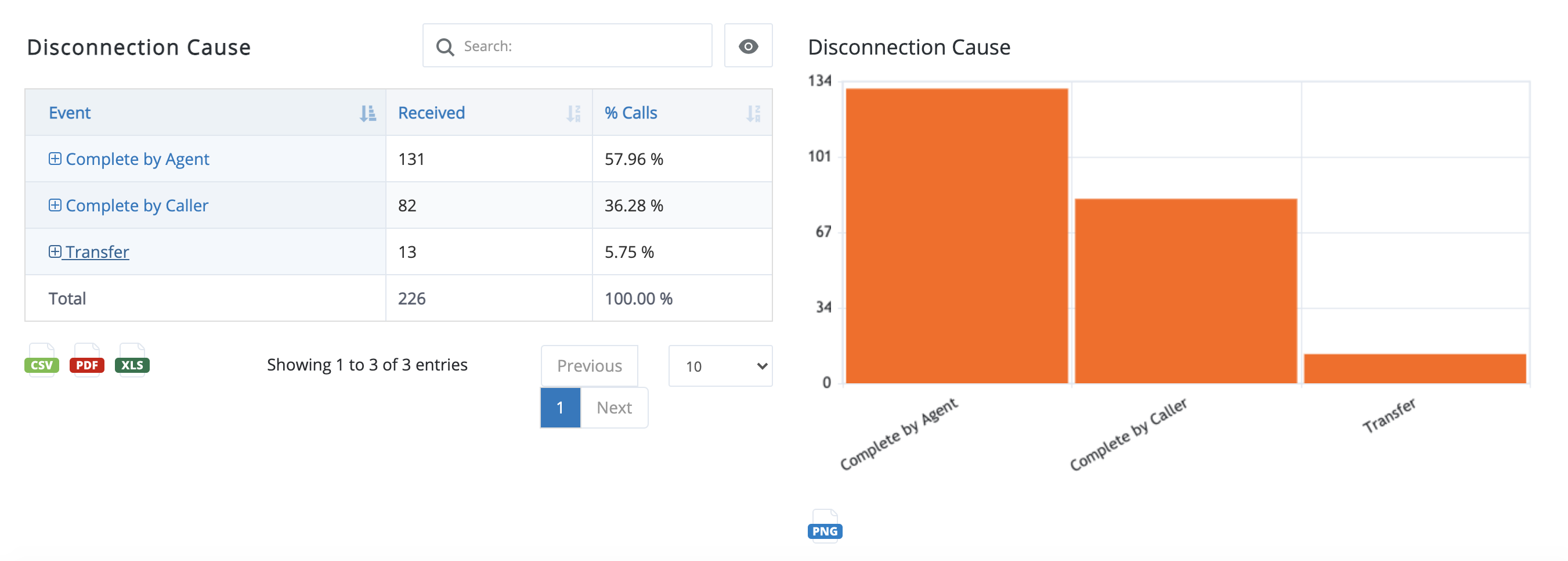
- Event: this column shows the last event created by the answered call:
- Complete by Agent: if Agent hangs up
- Complete by Caller: if Caller hangs up
- Transfer: if a call is transferred by Agent
- Received: the total of calls finished by this event
- % Calls: percent for this event against the total of answered calls
Click on the first column entry to see all calls grouped in this row:

- Date: date and time for the call
- Queue: Queue ID/ name
- Agent: Agent who answers the call
- Number: Caller ID received for the call
- Event: last event for the call, see Events
- Ring Time: time the call is ringing on Agent
- Wait Time: time the call is waiting on the queue before being answered
- Talk Time: time the call is connected to Agent
- Actions: N/A, used for call recordings (not yet implemented)
Answered by Call Length
Note: Measurements given in this report are the same as those on the Answered by Agent report.
This Report shows answered calls grouped by duration in 15 seconds steps.

- Duration: duration of call answered within 15 seconds steps
- Received: the total number of calls offered to Agent
- Completed: the amount of calls answered by Agent and not transferred
- Transferred: calls answered and transferred by Agent
- % Calls: percentage of answered calls for that Agent against the total (answered calls for all Agents)
- Talk Time: the total time Agent talking on the phone
- % Talk Time: percentage of talk time for that Agent against the total talk time (talk time of all Agents)
- Avg Talk Time: average talk time for Agent
- Ring Time: the sum of ring time of all calls answered by this Agent
- Wait Time: the sum of wait time for all calls answered by this Agent
- Avg Wait Time: average wait time for calls answered by Agent
- Max Wait Time: maximum wait time out of all calls answered by this Agent
Click on the first column entry to see all calls grouped in this row:

- Date: date and time for the call
- Queue: Queue ID/ name
- Agent: Agent who answers the call
- Number: Caller ID received for the call
- Event: last event for the call, see Events
- Ring Time: time the call is ringing on Agent
- Wait Time: time the call is waiting on the queue before being answered
- Talk Time: time the call is connected to Agent
- Actions: N/A, used for call recordings (not yet implemented)
Transfers
This report shows all transfers made by Agent.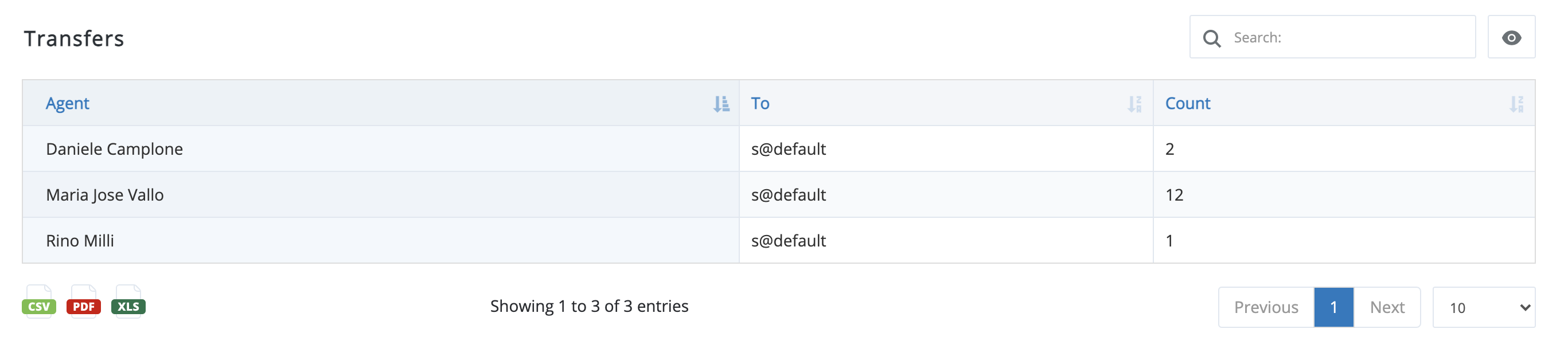
- Agent: Agent who transfers a call
- To: destination/ channel a call is transferred to
- Count: times a transfer is performed from Agent to this destination
Answered Calls Detail
This report shows all answered calls for the selected period, Agents and Queues.
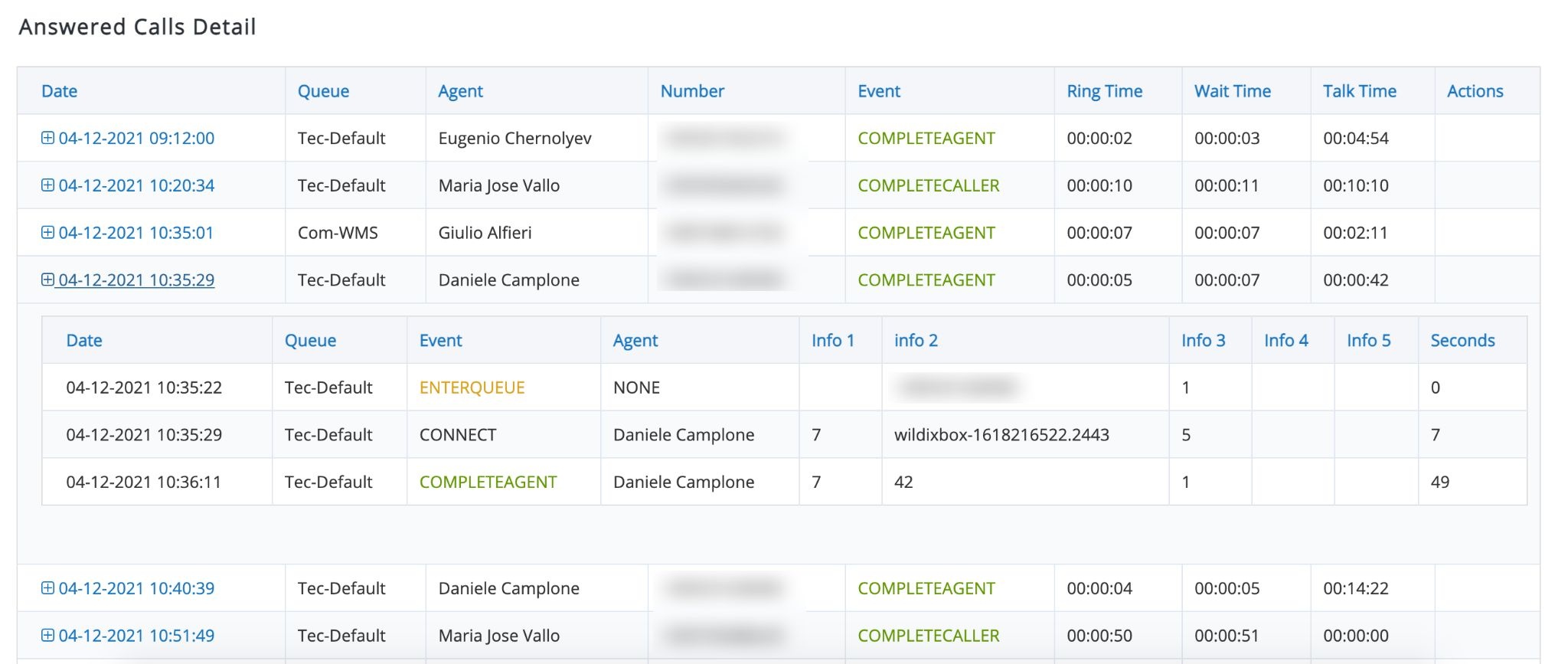
- Date: date and time for the call
- Queue: Queue involved in the call
- Agent: Agent who answers the call
- Number: Caller OD received for this call
- Event: Last event for the call, see Events
- Ring Time: time the call was ringing to Agent
- Wait Time: time Caller waiting in the queue to be answered
- Talk Time : time the call was connected to Agent
- Actions: N/A, used for call recordings (not yet implemented)
Click on the first column entry to view in detail the calls in this row:

- Date: date and time for every event in the details
- Queue: Queue the call arrives to
- Event: Every state or every event that took place on the call, see Events
- Agent: Agent that answered the call (if applicable).
- Info X: there are 5 info fields, each field info depends on the event, refer to INFO Fields
- Seconds: The moment, after entering the queue, the corresponding event happened. In other words, how long after queue entry for this call
Unanswered Reports
This report shows metrics for calls that are not connected to Agent. There are two main distinctions between unanswered calls:
- Abandoned: the ones where Caller hangs up before being connected to Agent. So, whenever Caller hangs up before being answered, an ABANDON event is registered
- Unanswered calls that exited Queue without hanging up by Caller. That means that Caller is still on the system, but the call exited the queue for some configurable reason, like a timeout being reached, because a digit was pressed, because the queue is empty, etc. Those reasons for a call exiting a queue without the user hanging up are always configured in your backend
Unanswered Calls Summary
Unanswered Calls Summary presents the parameters set in Filter.
Total Unanswered Calls report shows how many calls are not attended to and the cause (Abandon and Unanswered). It provides some insight regarding the situation that led to unattended/unanswered calls.

- Incompleted Calls: the total number of calls not connected to Agent
- Abandoned Calls: the total number of calls hung up by Caller while in queue
- Unanswered Calls: the total number of calls not answered and removed from queue (timed out from queue or exited due to DTMF interaction)
- Abandon Avg Wait Before Disconnection: average waiting time for all the abandoned calls
- Abandon Avg Queue Position at Disconnection: average queue position at the time of disconnection
- Abandon Avg Queue Start Position: average queue start position for abandoned calls
Service Level
This report shows the moment the calls are disconnected within different waiting times (15 seconds steps). Each new row includes the number of calls from the previous row. The report is available as a graphic representation.

- Abandoned: waiting time range. Click + to view the details of the calls
- Count: sum of all of the calls up to this point
- Delta: the difference from one row to the next
- %: percentage of the calls on this range against the total
Click on the first column entry to view in detail the calls in this row:

- Date: date and time for the call
- Queue: Queue ID/ name
- Number: Caller ID received for the call
- Event: last event for the call, see Events
- Wait Time: time the call is waiting in the queue before being disconnected
Disconnection Cause
This report shows reasons of call disconnections. It is available as a graphic representation.
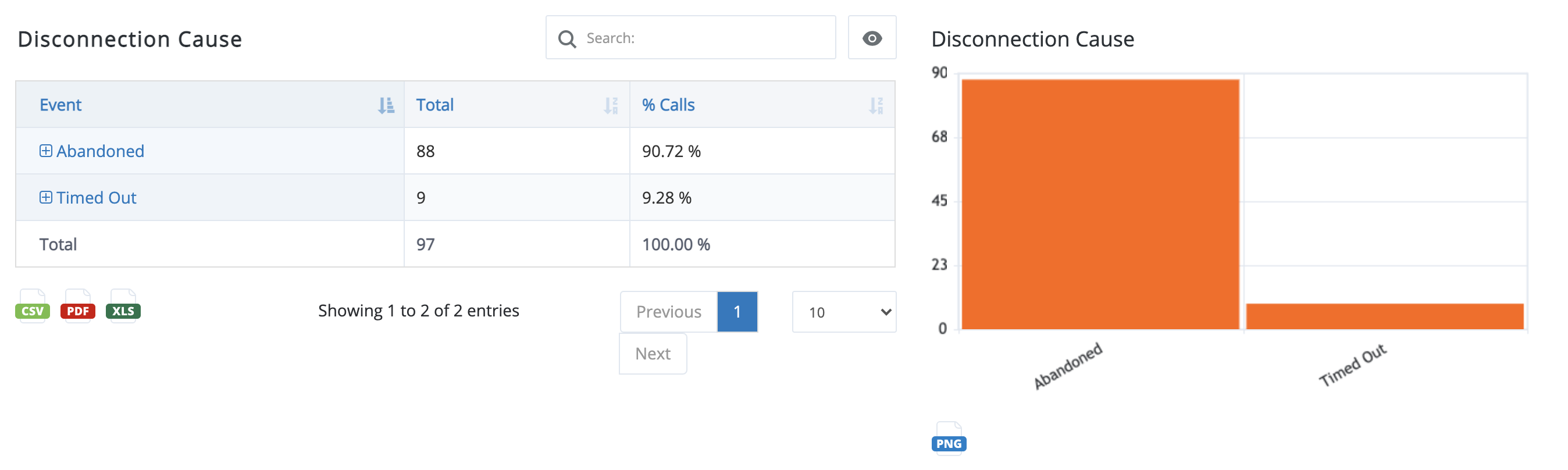
- Event: this column shows the last event fired by an unanswered call:
- Abandoned: Caller hung up
- Exit with key: Caller was removed from the queue by choosing an option in the keypad
- Timed out: a call was removed from the queue because the maximum allowed time was reached
- Total: the total number of calls for this disconnection cause
- % Calls: percent for this event against the total of unanswered calls
Click on the first column entry to view in detail the calls in this row:

- Date: date and time for the call
- Queue: Queue ID/ name
- Number: Caller ID received for the call
- Event: last event for the call, see Events
- Wait Time: time the call is waiting in the queue before being disconnected
Unanswered Calls by Queue
This report shows all unanswered calls grouped by Queue.

- Queue: Queue name/ ID. Click + to view in detail the calls included in this row
- Total: the total number of not connected calls for Queue
- Abandoned: number of abandoned calls (user hung up)
- Unanswered: number of unanswered calls (means a call existed the queue without the user hanging up, like timeouts or DTMF interactions)
- % Calls: percentage of calls against the total number of unanswered calls
Click on the first column entry to view in detail the calls in this row:

- Date: date and time for the call
- Queue: Queue ID/ name
- Number: Caller ID received for the call
- Event: last event for the call, see Events
- Wait Time: time the call is waiting in the queue before being disconnected
The report is available as a graphic representation:

Unanswered Calls Detail
This report shows detailed unanswered calls, one by one.
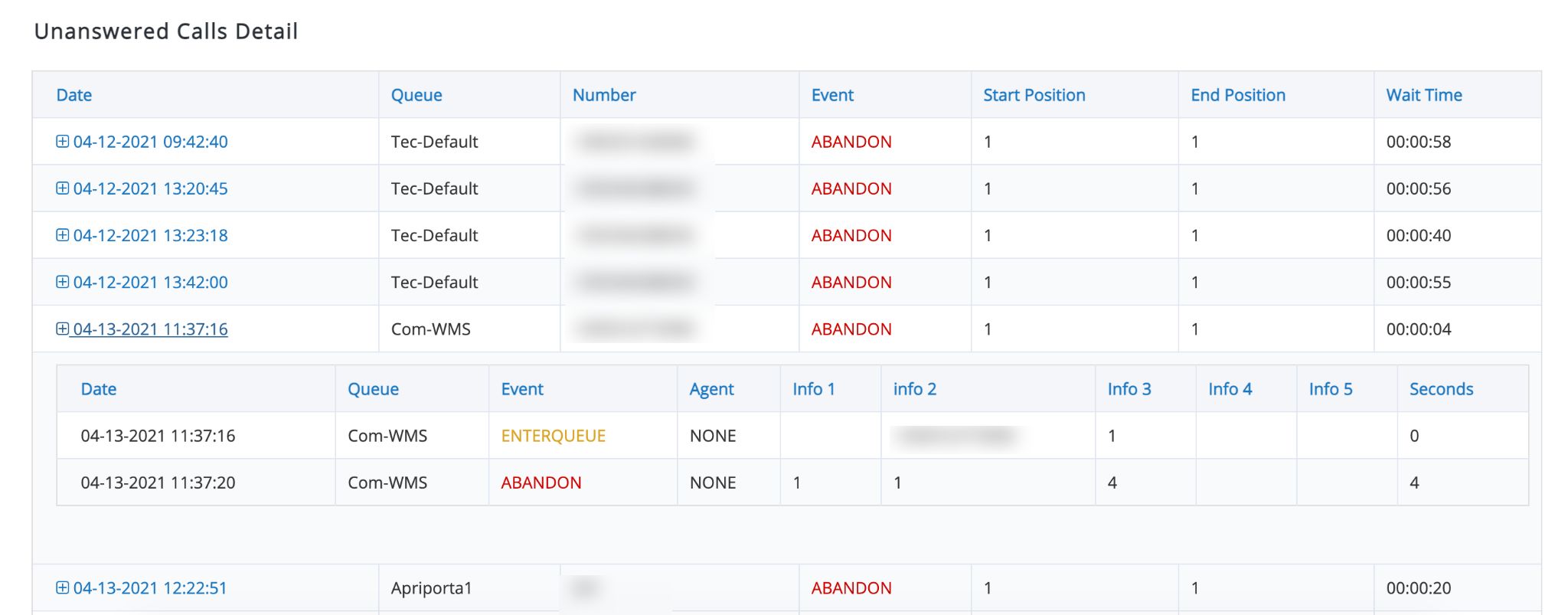
- Date: date and time for the call. Click + to view complete details of every call
- Queue: Queue involved in the call
- Number: Caller ID received for this call
- Event: last event for the call, see Events
- Start Position: position in which this call arrived into the queue.
- End Position: position in which this call was disconnected
- Wait Time: time Caller was waiting in the queue
Click on the first column entry to view in detail the call and its flow from the moment it arrives into Queue until it is abandoned:

- Date: Date and time for every event in the details
- Queue: Queue the call arrives to
- Event: every state or every event that takes place on the call, see Events
- Agent: none in this case as the call is abandoned
- Info X: there are 5 info fields, each field info depends on the event, refer to INFO Fields
- Seconds: the moment, after entering the queue, the corresponding event happened. In other words, how long after queue entry for this call
Agent Reports
This section contains reports showing Agent activity and session times, including pauses and activity details.
Agent Summary
Agent Summary presents the parameters set in Filter.
Agent Totals shows the total number of Agents per selected Queues.

- Number of Agents: how many Agents are considered for the reports
- Average Session Time: average time Agents are logged in Queue
- Shortest Session Time: shortest session time during the reported period
- Longest Session: longest session time during the reported period
- Total Session Time: the sum of all sessions during the reported period
Agent Availability
This report shows how Agents spend the time while logged into Queue.
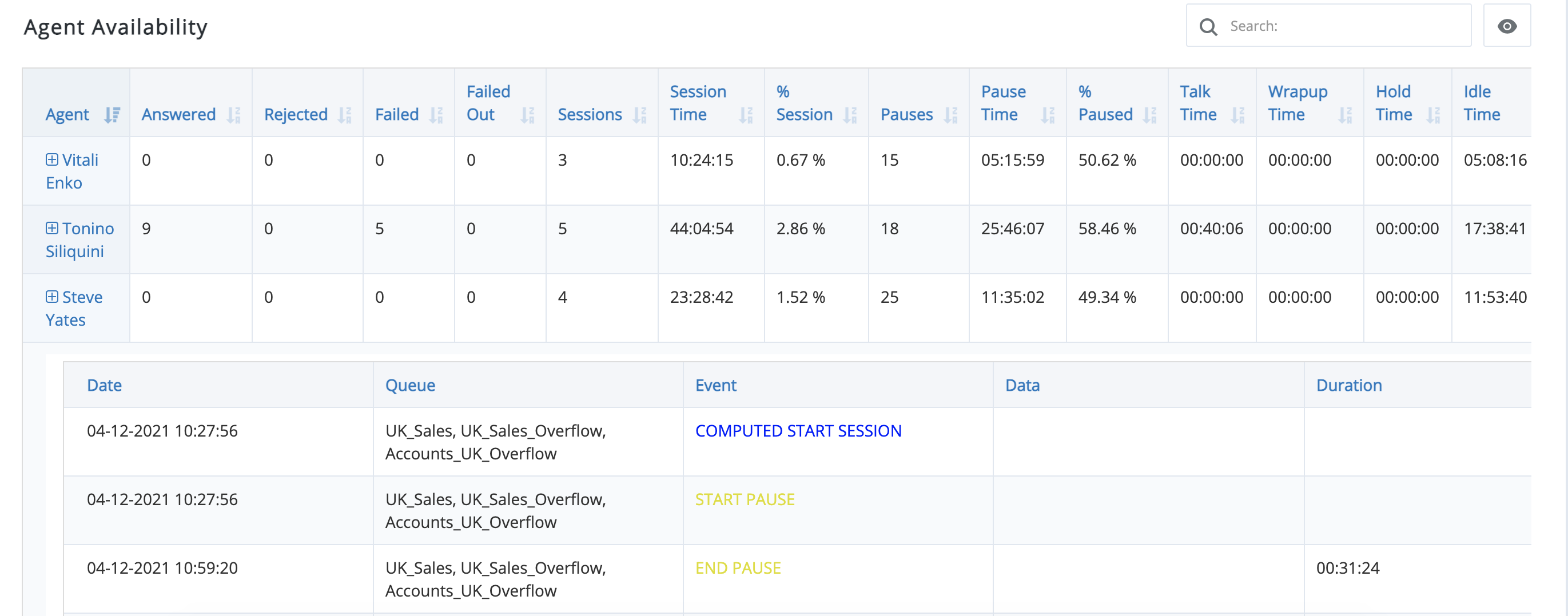
- Agent: Agent name/ extension
- Answered: number of answered calls by Agent
- Rejected: number of rejected calls by Agent (means Agent declines a call while it is ringing on the phone; or the call stopped ringing in less than 15 seconds due to call timeout, etc.)
- Failed: number of calls offered to Agent but not answered
- Failed Out: N/A, used for outgoing calls (not yet implemented)
- Sessions: number of sessions for Agent during the period. Sessions means how many times they are logged in
- Session Time: the sum of all sessions times of Agent
- %Session: percentage that Agent sessions represent against of all the other Agents selected for the report
- Pauses: number of pauses Agent takes during the period. Pause means DND or Away status (time that Agents mark themselves as being unavailable)
- Pause Time: total time Agent is in Pause state
- % Paused: out of Agent total session time, how much Agent is paused
- Talk Time: time Agent spends on the phone (in calls)
- Wrapup Time: time Agent is in wrap-up time (pause due to wrap time configured for Queue)
- Hold Time: time Agent puts Caller on hold
- Idle Time: all the time Agent is logged in Queue but not actually talking on the phone or in a pause
- AHT: Average Handling Time, the average time Agent uses to handle calls. Right now it counts only time spent talking on the phone
Click on the first column entry to view in detail the calls grouped by this Agent:
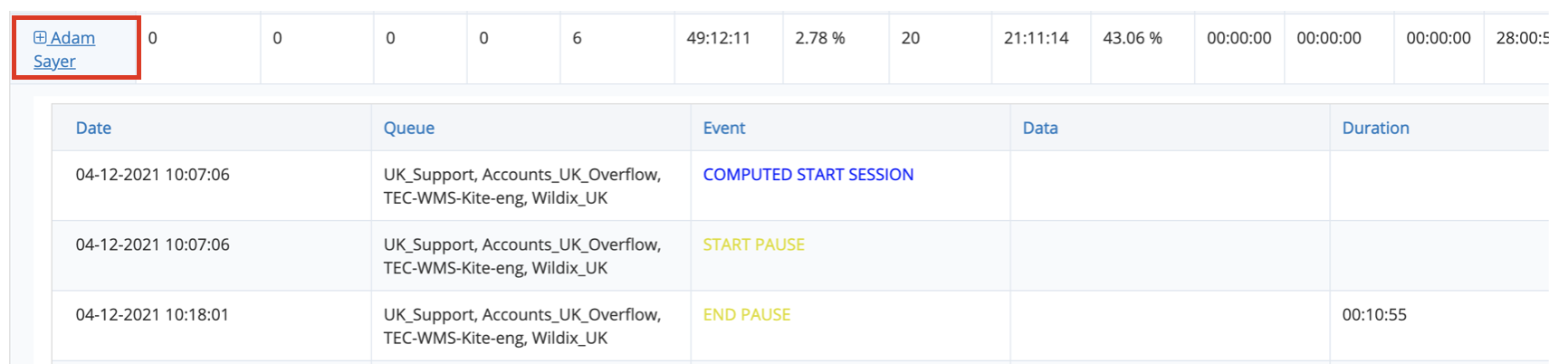
- Date: date and time for the event
- Queue: Queue for the event
- Agent: Agent related to the event
- Event: see Events
- Data: Caller ID for applicable events
- Duration: duration for applicable events
Pause Detail
This report shows the total number of pauses by Agent.
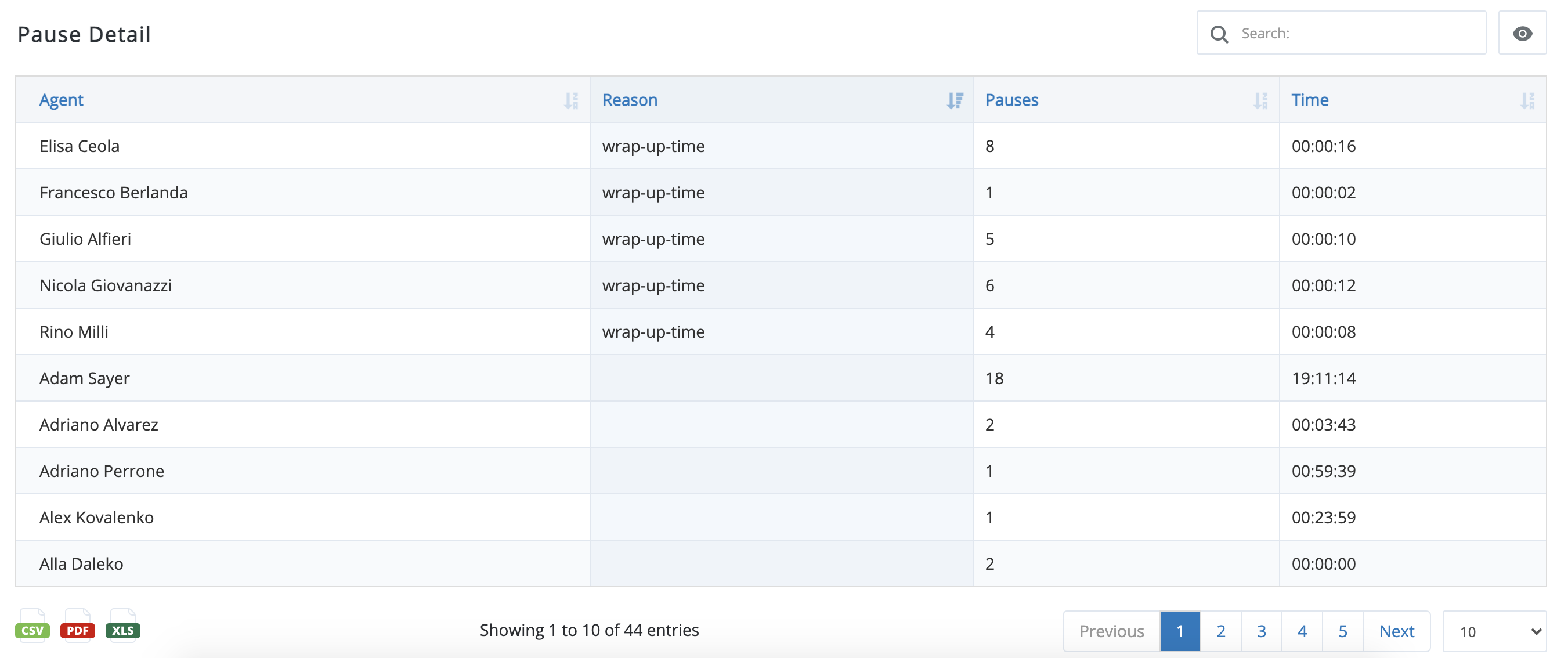
- Agent: Agent name/ extension
- Reason: reasons the call is set on pause, includes status and status message (status messages display is supported starting from WMS 6.01.20221122.1).
- Pauses: number of pauses
- Time: time the call spends on pause
Call Disposition by Agent
This report shows reasons for calls disconnections grouped by Agent.

- Agent: Agent name/ extension
- Complete by Caller: number of calls answered by Agent and hung up by Caller
- Complete by Agent: number of calls answered by Agent and hung up by Agent
- Transfer: number of calls answered by Agent and transferred
- Failed: number of calls offered to Agent but not answered
- Rejected: number of calls offered to Agent but rejected (e.g. declined by agent, stopped ringing to the group in less than 15 seconds due to call timeout, etc.)
- Failed Out: N/A, used for outgoing calls (not yet implemented)
Click + to view in detail the calls grouped by this Agent:

- Date: date and time for the event
- Queue: Queue for the event
- Agent: Agent related to the event
- Event: see Events
- Data: Caller ID for applicable events
- Duration: duration for applicable events
Full Agent Report
This report shows all of the events related to Agent without any sort of filter or grouping.
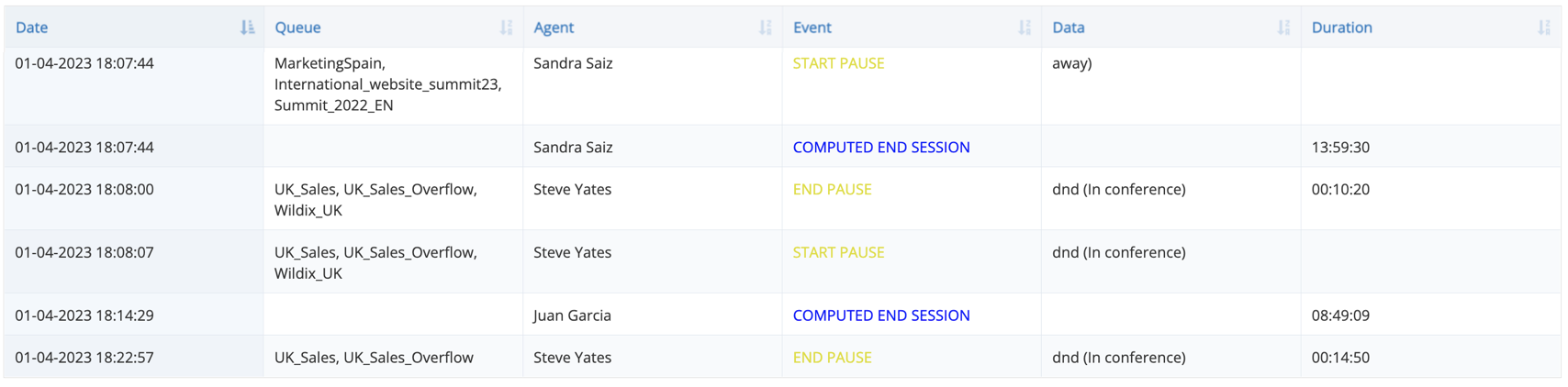
- Date: date and time for the event
- Queue: Queue for the event
- Agent: Agent related to the event
- Event: see Events
- Data: Caller ID for applicable events; status and status message (support starts from WMS 6.01.20221122.1).
- Duration: duration for applicable events
Scheduled reports
Note: The support starts from WMS 5.04.20220608.1.
x-caracal allows configuring scheduled reports:
Go to Setup -> Schedules/ Alerts
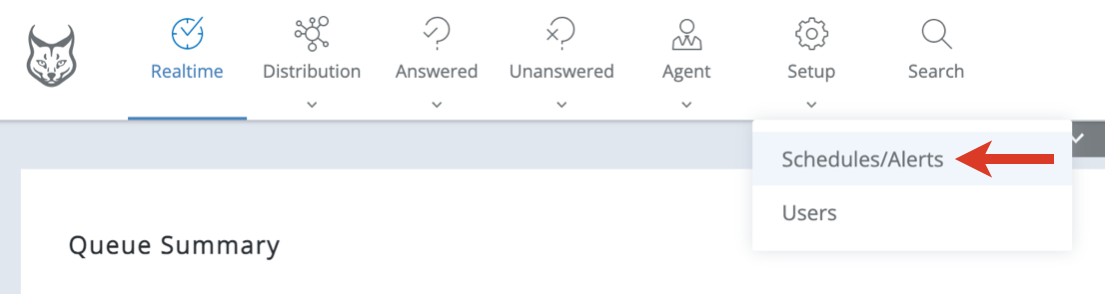
Note: The Setup menu is available only for a manager who is a user with "Admin" user type.
Starting from WMS Beta 6.04.20230724.1, Setup -> Schedules/Alerts menu is available for non-admin users too.
- Under New Scheduled Report, enter the necessary configurations:
- Write down destination emails: type email addresses, separated by commas, to which the scheduled reports will be sent
- Please select the reports to send: choose the reports in the drop-down list
- Select the queues: choose queues from the drop-down list
- From the last (X) days: choose the preferred time range of the reports
- Including Today: tick off the option if you want to have current day data included
- Cron Configuration: these settings are accountable for how often and at what time the reports are sent. In this section, you need to configure the following options:
- Month days: enter the days (in numbers) on which the reports should be sent, separated by commas. For example: 3, 5, 20, 25.
Or, to have reports sent on any day, enter “*”. - Week days: in the drop-down list, select days of the week for sending reports.
- Hours: enter an hour. For example: 12, which means the reports are sent at 12 o’clock. Option “*” suggests “at any hour”.
Minutes: enter at which minute reports should be sent. Option “*” means “at any minute”.
Note: Reports are sent in case the criteria of both Month days and Week days configurations are met. If, say, you’ve entered "1,15" in Month days and "Monday, Wednesday" in Week days, the reports will be sent on 1st and 15th day and only if it’s Monday or Wednesday.
If, for example, you want reports to be sent on Wednesdays and Fridays, the configuration would be the following:
Month days: *
Week days: Wednesday, Friday
- Month days: enter the days (in numbers) on which the reports should be sent, separated by commas. For example: 3, 5, 20, 25.
Active: mark the checkbox to enable scheduled reports.
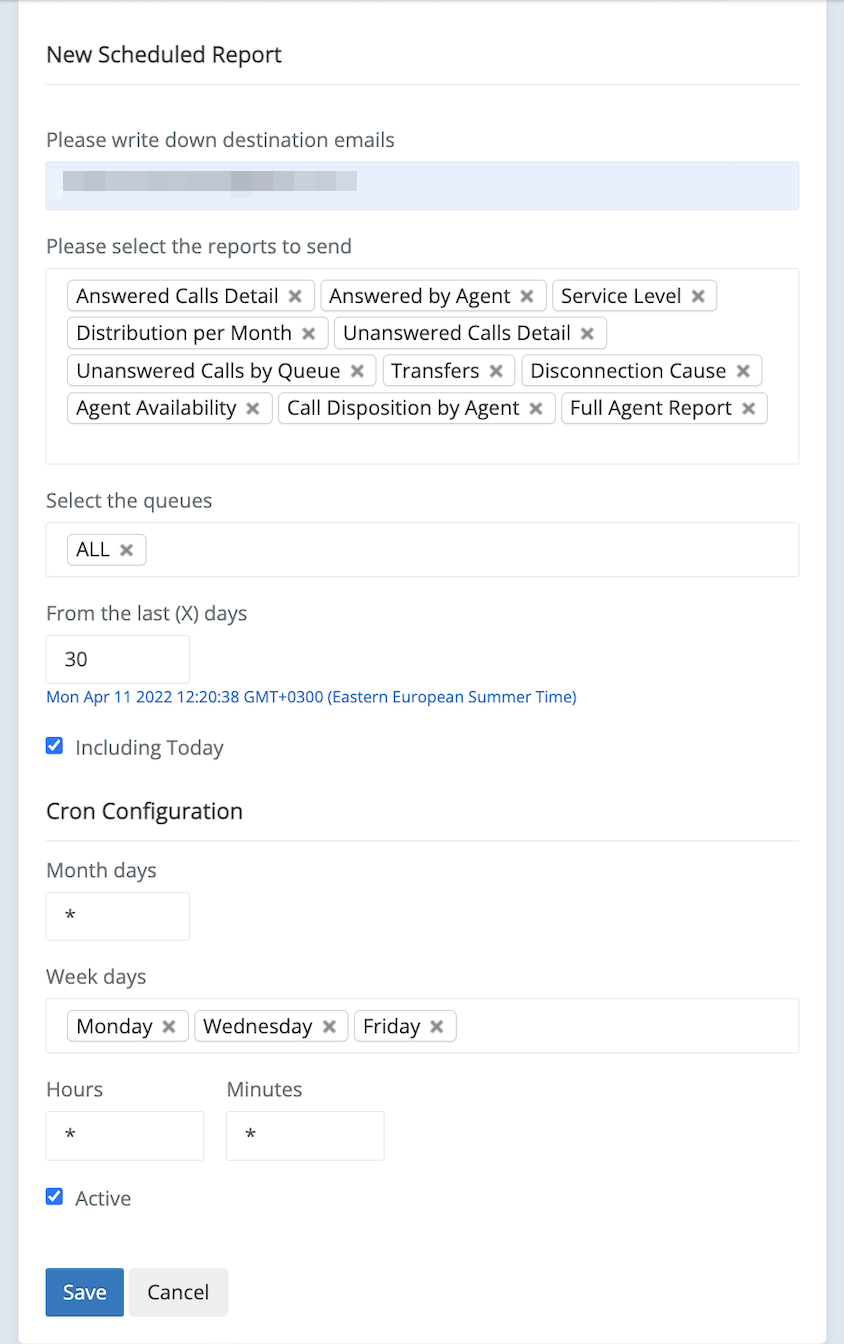
Click Save.
The report appears in the list of Scheduled Reports and Alerts on the right:
Here, you can view the details of the scheduled report, edit or delete it. There is also Run Now button, which sends the report to the destination emails immediately.
Note: Starting from WMS Beta 6.04.20230724.1, the Setup tab with Schedules/ Alerts is now available for non-admin users, with the possibility to create and manage scheduled reports.
When creating a scheduled report, user can see only the queues that were made available by admin for this user (via Setup -> Users tab).
Important: If user access to a queue was revoked, the reports for this queue are still sent to the user, unless configured otherwise by the admin.
Custom Settings
With the help of Custom Config Parameters, you can change time range limit for reports and modify inactivity timer. Check the dedicated documentation Custom config parameters List for details.
Debugging
In case you encounter any issues while using x-caracal, use one of these commands for debugging:
to check the current x-caracal status:
service x-caracal status
to start x-caracal if it is not running:
service x-caracal start