Director - Secretary configuration
- Elena Kornilova
- Tatiana Bieliakova
- Ksenia Babych
This document explains how to set up a Boss / Secretary configuration. This scenario is especially useful for big enterprises and public administration with complicated hierarchy. For smaller companies, consider configuring a Director-Secretary Switch
Created: October 2018
Updated: May 2019
Permalink: https://wildix.atlassian.net/wiki/x/Ug-OAQ
Configuration scenario
- Boss should always be able to receive calls from the secretaries
- Boss should always be able to receive calls from other bosses
- Boss can decide whether or not to accept calls
- Secretaries should be notified when the boss is receiving an incoming call
Configuration
Step 1. Add secretaries to whitelist so that they can always reach the boss
Edit the procedure used for placing calls (users by default):
- Add the boss's extension (118 in our example) as Called number, and, using custom applications, add secretaries extensions to whitelist (1338 and 1339 in our example):
- Called number - 118 (boss)
- Custom application - GotoIf($["${CALLERID(num)}" = "1338"]?whitelist${EXTEN},1) - adds the secretary's extension (1338) to whitelist
- Custom application - GotoIf($["${CALLERID(num)}" = "1339"]?whitelist${EXTEN},1) - adds the secretary's extension (1339) to whitelist
- Dial the phone - Set (called number) - select Remove instead of Custom

- To the same procedure, add a rule allowing the extensions, which are present in the whitelist, to dial the boss:
called number - whitelistXXX
- Set - Type of call - whitelist
Dial the phone - Set (called number) - select Remove - 9 (called number whitelistXXX becomes XXX)

Step 2. Create a dedicated Diaplan for other bosses so that they can always reach the boss
Create a new procedures, e.g. users_bosses and add a rule which adds bosses to whitelist:
- called number - X.
- Set - Type of call - whitelist
- Jump to - Procedure (users) - Set (called number) - select Remove instead of Custom

Assign this procedure to bosses in WMS → Users → Edit (user) → Dialplan
Step 3. Edit Call features of the boss to reject all calls except for the whitelist
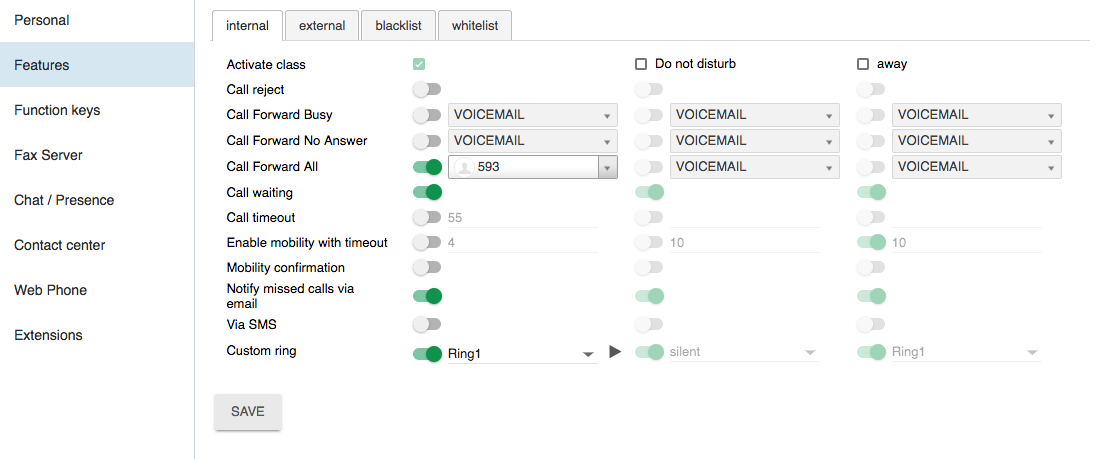
You can do this configuration either in Collaboration Settings → Features or in WMS → Users → Edit preferences → Features for the boss's extension (118 in our example):
Edit "Internal" call class: enable "Call Forward All" - 593, where 59 is Feature code for Call group, 3 is the Call group where the secretaries are present (1338, 1339)
Note: when the boss would like to start accepting calls from everyone, it's sufficient to disable "Call Forward All"
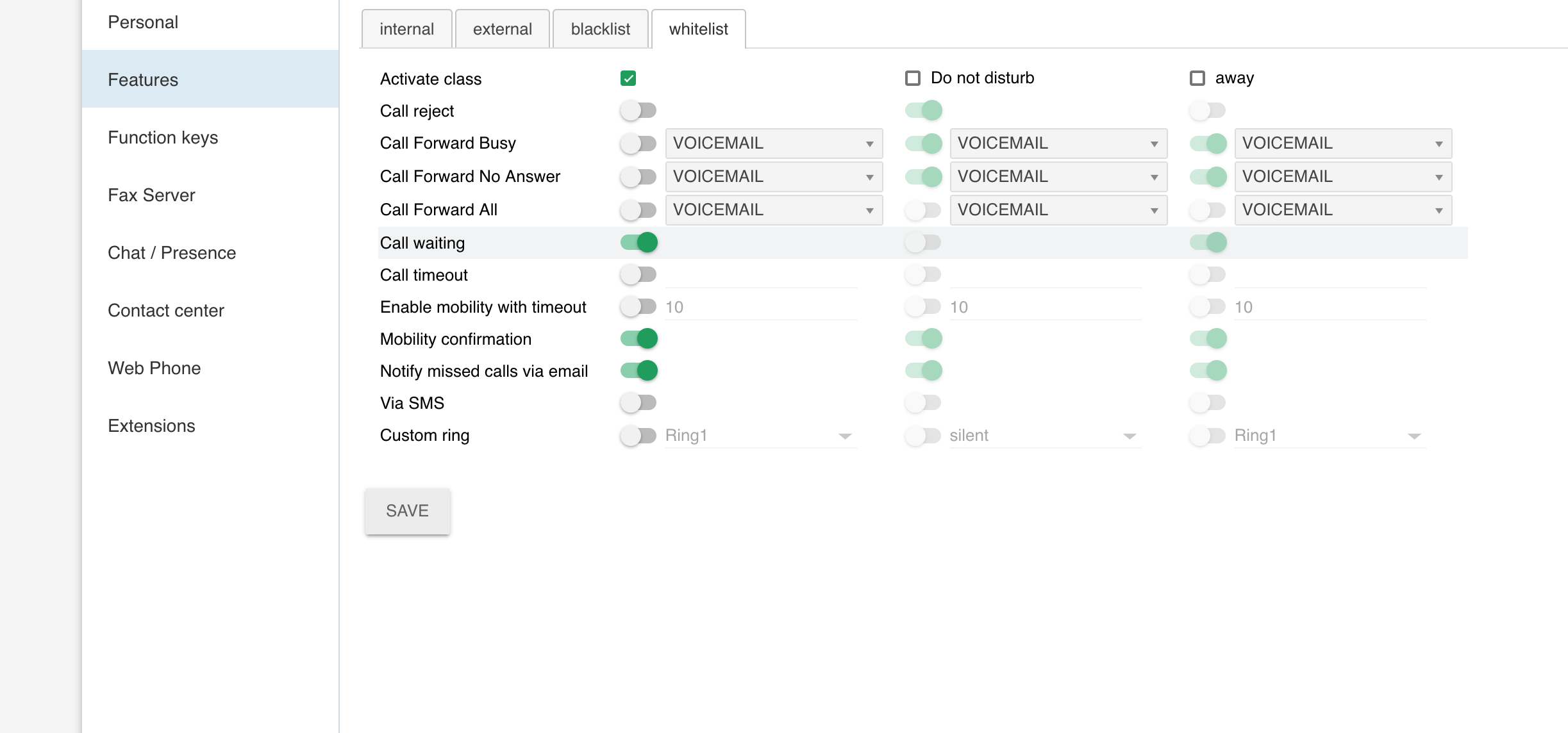
- Edit "Whitelist" call class: Activate class
Step 4. Add BLF keys for the secretaries to monitor the calls of the boss
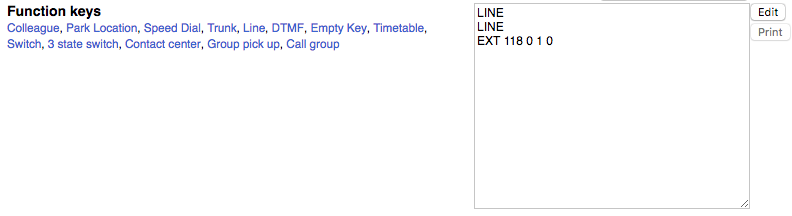
You can do this configuration either in Collaboration Settings → Function keys or in WMS → Users → Edit preferences → Settings for the secretaries' extensions (1338, 1339 in our example):
- Add "Colleague" Function key - 118 (boss) and options 0 1 0 which enables "audio notification" allowing the secretary to receive an audio notification each time the boss is receiving an incoming call.
Note: It it possible to set a ringtone to be played instead of a beep for BLF keys audio notification. Consult Provisioning Custom Settings for details.