SAP Business One Integration - User Guide - English
This guide will lead you through the process of SAP Business One integration usage, starting from an installation, and ending with practical examples for call receiving.
Requirements:
- WMS version: 5.01 or higher
- Wildix UC-Business or UC-Premium license
- Starter Package User or Professional SAP Business One License
- SAP Business One Professional User and Addon licenses
- Installed and configured TAPI driver
Created: November 2019
Updated: January 2023
Permalink: https://wildix.atlassian.net/wiki/x/JwXOAQ
Click-to-call feature
- Incoming call popup
Outgoing call popup
- Auto-detect existing Contact and Business Partner and redirect to its page
- Creating a new Contact and assign it to the existing Business Partner via popup
Installation Link
Make sure that you have the installed and configured TAPI driver.
- Download the Wildix Integration according to your version:
- In the archive you should see two files:
- The add-on registration data (.ard) file
- The add-on setup (.exe) file
Installation process
Setup the Integration as SAP Business One Add-on
You need the administrative rights to install the add-on
On the SAP Business One Main Menu, choose
 Administration
  Add-Ons Add-On Administration Company Preferences
  tab.
tab.Choose the Register Add-On button.
The Add-On Registration window appears.
In the Installation Information section, locate and select the add-on registration data (.ard) file for the add-on by choosing
 (Browse) button next to the Registration Data File field.
If the selected .ard file contains installer information and the installer file is located in the same folder as the .ard file, SAP Business One automatically fills the installer file in the Installation Package field. If you use the silent installation mode, SAP Business One automatically fills the fields in the Silent Installation Information section.
If the Installation Package field is not filled automatically, locate and select the setup.exe file for the add-on by choosing
(Browse) .To assign the add-on to the current company, select the Assign to Current Company checkbox.
To install the add-on after registration, select the Install as Part of Registration checkbox.
SAP Business One installs the add-on on the current machine immediately after registration. You do not have to log off your company and log on again. Installing the add-on on other machines depends on company and user preferences.
To register the add-on, choose the OK button.
If you assigned the add-on to the current company in step 5, the add-on appears in the Company-Assigned Add-Ons list in the Add-On Administration window. The add-on is registered and assigned to the current company.
Add-ons that are not mandatory are registered as Disabled and Active for the company. For more information about these settings, see Add-On Administration: Company Preferences Tab.
If you did not assign the add-on to the current company in step 5, the add-on appears in the Available Add-ons list in the Add-On Administration window. The add-on is registered for the current company.
To notify all the users in the current company about the new add-on, proceed as follows:
Choose the Send Notification to Users button.
The You Have new Add-Ons to Install window appears.
Enter the notification message header and text.
Choose the Send Notification button.
Users receive the notification message within a minute after you have sent it.
To close the Add-On Administration window, choose the OK button.
Activate the integration
By default, the Add-On is not turned on for any user. You need to decide when the integration add-on will start. To do so, follow the instruction
On the SAP Business One Main Menu, choose
Administration Add-Ons Add-On Administration User Preferences tab.Choose the user.
Click on WildixSAPB1Integration add-on
Preferences.Manual — for the manual start of the integration.
Automatic — for the automatic start of the integration with every SAP start.
Disable — this user can not have access to the add-on.
- Default — the settings will be the same as the Company Preferences
Start the integration
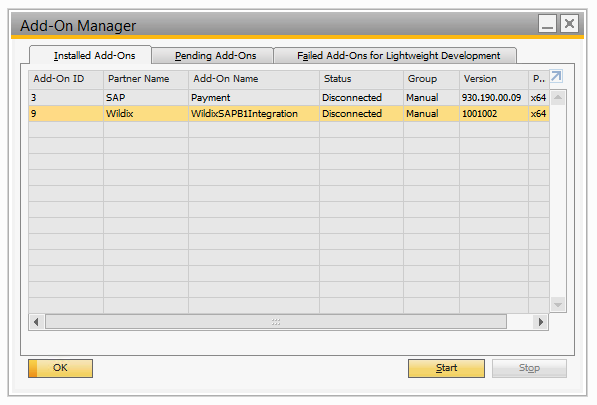
Those who use Manual mode Preference should do the next steps each time they run the SAP:
On the SAP Business One Main Menu, choose
Administration Add-Ons Add-On Manager User Preferences tab.Click on WildixSAPB1Integration add-on.
- Click on the Start button and wait for a few seconds.
Place a Call
The extension should be assigned to your user via the Telephony command console. Read further in the TAPI guideline.
Keep the Collaboration open while working with the application
Click to call feature is available across Business Partner Master Data records within any tab.
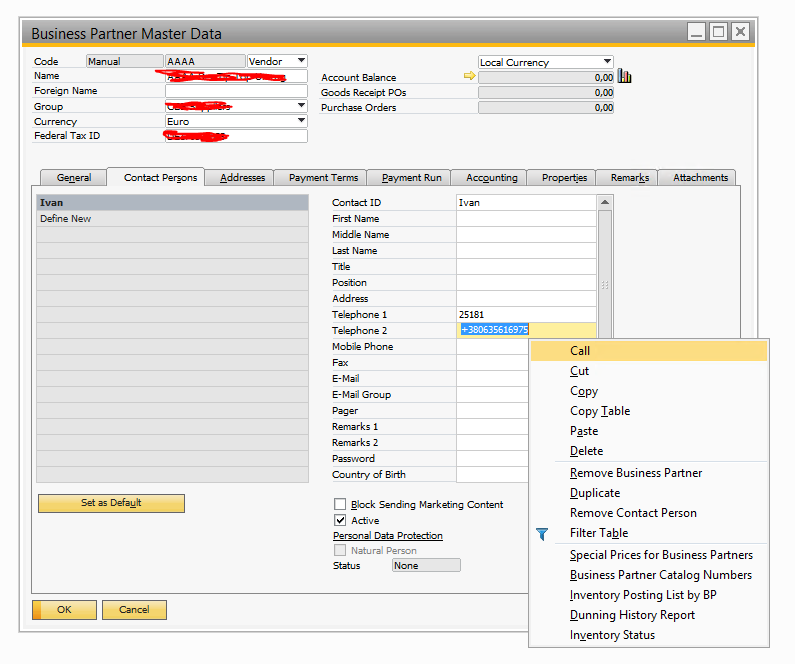
To place a call simply do next steps:
- Open up Business Partner Master Data record.
- Proceed to any of the Phone number fields.
- Right mouse click on Phone Number and press on Call.
Answer a Call
The extension should be assigned to your user via the Telephony command console. Read further in the TAPI guideline.
Keep the Collaboration open while working with the application
If the contact is not presented in SAP
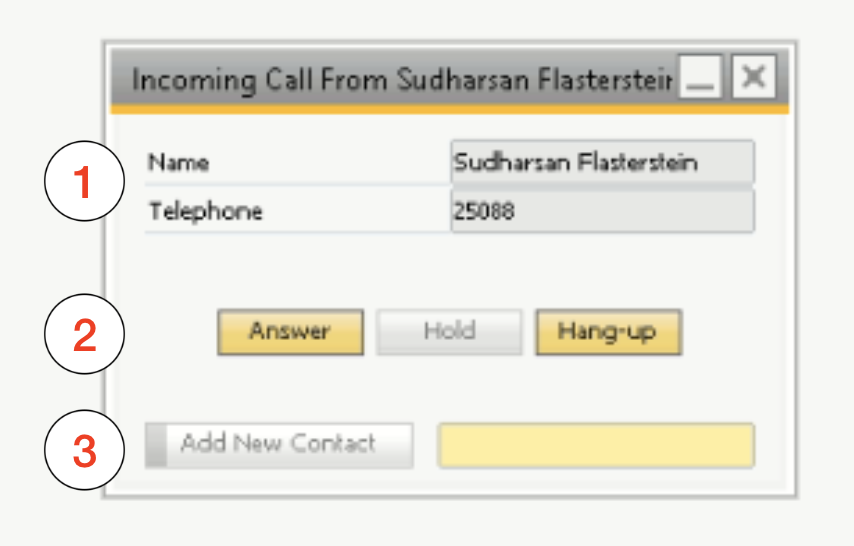
You can tell that you have an incoming call if you see this pop-up above all other windows. It also plays the ringtone.
This popup has the next fields:
- Details about the call with the Name of the Client and his Phone Number.
- The Answer, Hold and Hang-up buttons
- Add New Contact and Search field for the Business Partner
You cannot create a contact without a connection to the existing Business Partner
If the contact already exists in SAP
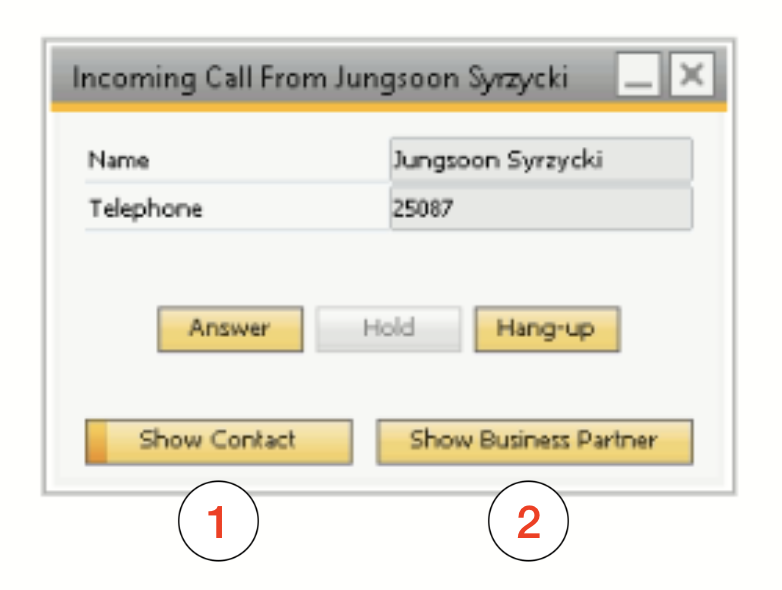
When the caller's phone number can be matched with a number in an existing SAP record, you can see this pop-up.
It still contains the same info, but on the bottom side you can see next buttons:
- Show Contact — Automatically opens SAP record with Contacts tab and focus on this contact record
- Show Business Partner — Opens Business Partner Master Data record for this contact
If you have multiple Partners/Contacts with the same phone numbers
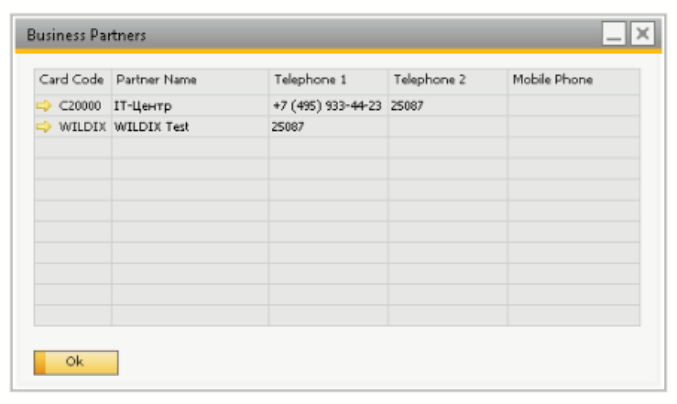
In this case, you can see the regular popup from the previous case with the next difference. Show Contact and Show Business Partner buttons will open a spreadsheet with all matching contacts/business partners and you need to choose one of these records by clicking on the yellow button next to the Card Code